
How to transfer an eSIM to a new iPhone or Android phone
Key takeaways
- On iPhone, go to Settings, Cellular, Add eSIM, then Transfer From Nearby iPhone with Bluetooth on and both phones on iOS 18.4 or later.
- On Android, Pixel 7 and newer and Galaxy S23 and newer support a native Bluetooth transfer on Android 14 and later, through the SIM manager.
- If no transfer option appears, ask your carrier for a fresh QR code and scan it on the new phone instead.
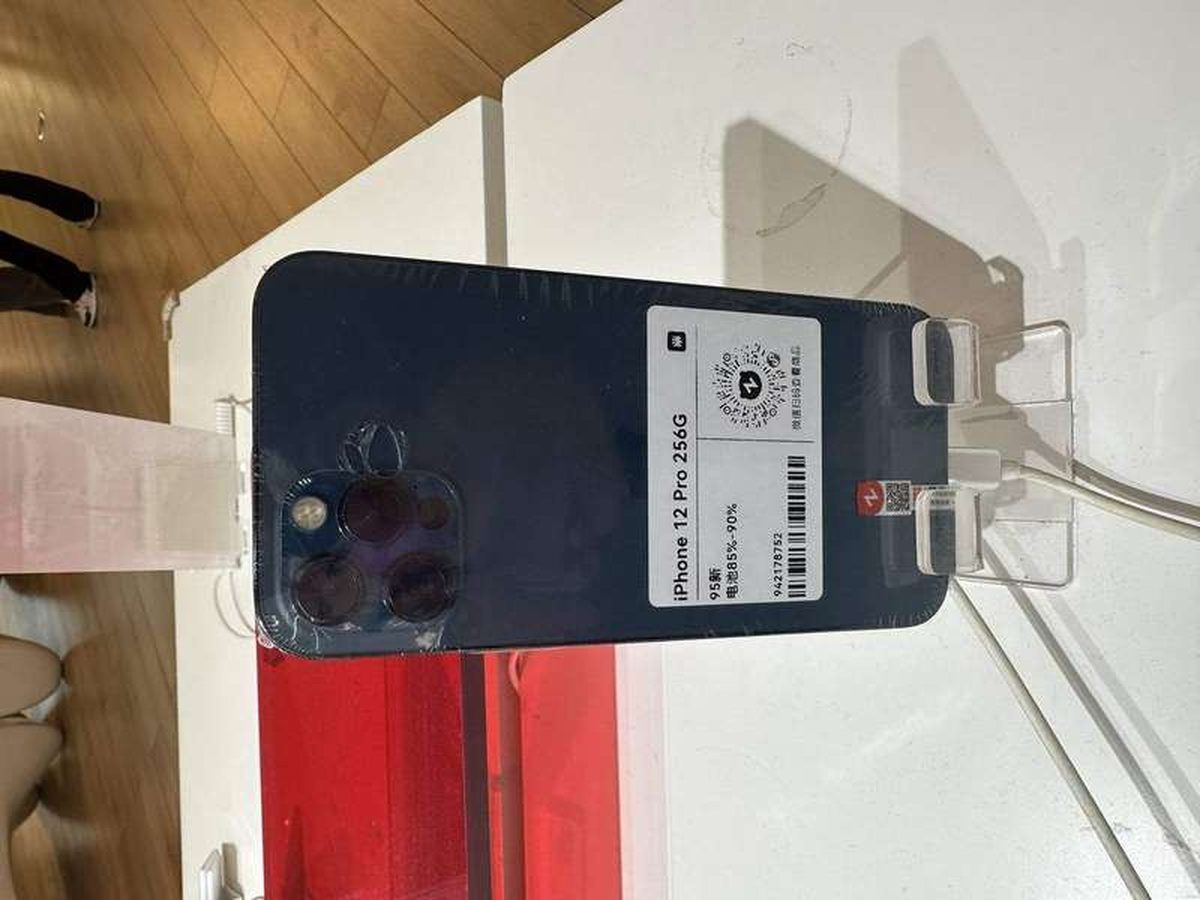
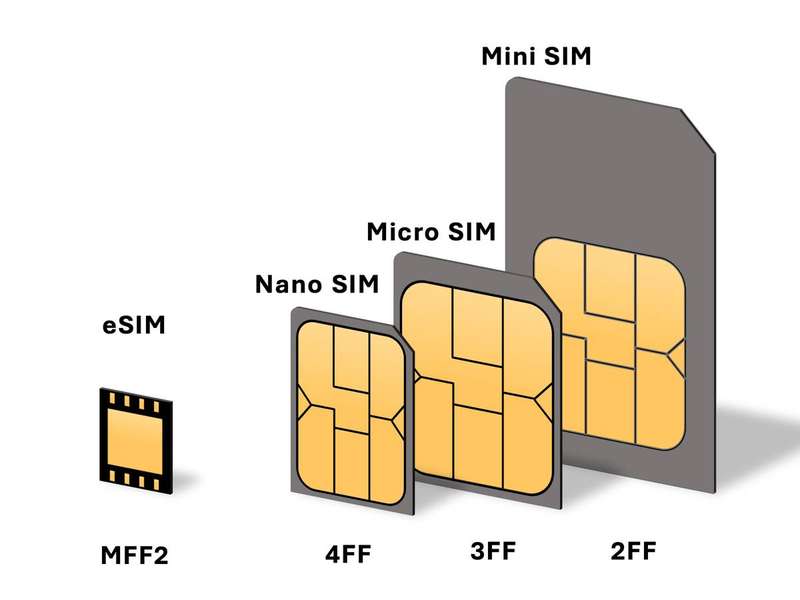
An eSIM is a digital SIM built into your phone. It does the same job as the plastic SIM card you used to slot into a tray, but it lives on a chip inside the device and your carrier activates it with software.
Moving it to a new phone used to mean a call to your carrier and a wait. These days both Apple and Google have built wireless transfer tools that move the plan from the old phone to the new one in a few minutes. This article explains eSIM transfers, including what an eSIM is, the iPhone-to-iPhone method, the Android method, cross-platform moves, and what to do when the transfer option does not appear.
What an eSIM is
The "e" in eSIM stands for embedded. The SIM profile is stored on a rewritable chip soldered into the phone, so there is nothing to lose, bend, or swap with a paperclip.
Apple added eSIM starting with the iPhone XS, XS Max, and XR in 2018. The feature kept spreading until US models of the iPhone 14 dropped the physical SIM tray entirely in 2022.
On Android, eSIM arrived with the Pixel 3 in 2018 and spread to Samsung, Motorola, and other makers in the following years. Most flagship phones sold today support it.
One more thing worth knowing: an eSIM is tied to the device, not the phone number in the way people expect. You cannot just pop it out and move it. The carrier has to release the profile and the new phone has to download or receive it, which is exactly what the transfer tools below do.
How to transfer an eSIM from iPhone to iPhone
This is the smoothest eSIM move in the industry. Apple calls it eSIM Quick Transfer, and it works over Bluetooth with no carrier call in most cases.
Before you start, Apple Support lists four requirements. Both iPhones must run iOS 18.4 or later, and both must be signed in to the same Apple Account.
The old iPhone must be unlocked with its passcode. Both phones must be nearby with Bluetooth turned on.
Start on the new iPhone, not the old one. Open Settings, tap Cellular, then tap Set Up Cellular or Add eSIM. Choose the plan offered from your other iPhone, or tap Transfer From Nearby iPhone if no list appears.
Now pick up the old iPhone. It will show instructions to approve the move. Tap Transfer, and if Apple asks for a verification code, enter the code shown on the new iPhone.
Then wait. The plan activates on the new phone, which usually takes a few minutes.
When it does, the plan on the old phone deactivates automatically. Do not erase the old phone while the new line is still pending.
Two details catch people out. First, with iOS 26 or later, you can transfer more than one phone number in the same flow, according to Apple Support.
Second, if a banner appears saying Finish Setting Up Your Carrier's Cellular Plan, tap it. That means the handoff reached a carrier-controlled step, and your carrier's page will finish the job.
How to transfer an eSIM on Android
Android's native transfer is newer and patchier than Apple's, but it works the same way on the phones that support it. You need a Pixel 7 or newer, or a Galaxy S23 or newer, running Android 14 or later.
On a Pixel, open Settings, then Network and Internet, then SIMs, then Add eSIM. Choose Transfer from another device if the option appears.
On a Samsung phone, the path is Settings, Connections, SIM Manager, Add eSIM, then Transfer from another device. Samsung labels the same feature "Transfer SIM."
Unlock the old phone and hold it near the new one. A prompt appears on the old device, and the carrier profile moves over the Bluetooth connection. Keep both phones awake and near each other until the new line shows as active.
Carrier support is the catch. Transfer partners reported by eSIM guides include T-Mobile US, Google Fi, Deutsche Telekom, and Orange, but many carriers do not support the native flow yet. If the option is missing on a supported phone, your carrier is the reason, and the QR method below is the fix.
Travel eSIMs deserve a warning here. The native transfer is built for your home carrier plan. Third-party travel eSIMs usually cannot use it and need a fresh QR code from the provider instead.
How to move an eSIM between iPhone and Android
Cross-platform moves are the newest piece of the puzzle. Google announced an upgraded switch tool that can transfer an eSIM wirelessly from an iPhone to an Android phone during setup, alongside passwords, Wi-Fi logins, and message history.
The tool rolled out first on select Pixel phones and newer Samsung foldables, with Google saying it would expand to more Android devices over time. During setup, the new Android phone shows a QR code or session ID, you confirm on the iPhone, and the devices negotiate the move directly.
Carrier support is again the limit. Google notes that not all carriers support the iPhone-to-Android eSIM handoff yet, and the company says it is working to expand compatibility. If your carrier is not on board, fall back to the QR method.
Going the other direction, from Android to iPhone, has no equivalent one-tap flow. Ask your carrier for a new eSIM activation for the iPhone and set it up with the QR code or carrier activation path described next.
What to do when the transfer option is missing
No transfer option does not mean no eSIM. It almost always means your carrier wants to issue the profile itself, and the QR code path handles that.
First, contact your carrier and ask for a new eSIM for the new phone. Many carriers make the QR code inside their app or account portal under headings like "Replace SIM" or "Get new QR code." Some will ask for the new phone's IMEI (the phone's unique ID number), which you can find in Settings under General and About on iPhone.
Display the QR code on a second screen, such as a laptop or tablet. You cannot scan a code with the same phone that is showing it.
On the new iPhone, go to Settings, Cellular, Add eSIM, then Use QR Code, and point the camera at the code.
On a Pixel, the path is Settings, Network and Internet, SIMs, Add eSIM, then scan. On Samsung, it is Settings, Connections, SIM Manager, Add eSIM.
The profile downloads in under a minute on a good Wi-Fi connection.
If the QR path also stalls, two more options remain. Some carriers support eSIM Carrier Activation, where the plan appears as a notification reading "Carrier Cellular Plan Ready to Be Installed" and you just tap through. And if nothing works, visit the carrier in person, since a store rep can set up the eSIM on the spot.
One last rule for every method: keep the old phone and its plan active until the new phone shows the line working. Make a test call. If the new line is live, the old one is already deactivated and you are done.
Frequently asked questions
Will transferring my eSIM delete anything on my old phone?
No. The transfer moves only the cellular plan. Your photos, apps, and messages stay on the old phone unless you move them separately with a backup or device-to-device transfer.
Do I need Wi-Fi to transfer an eSIM?
Yes, in practice. The profile has to be downloaded or verified over the internet, and the Bluetooth handoff only carries the authorization. Apple and Google both expect the phones to have connectivity during the move.
Can I transfer an eSIM if my old phone is broken?
Not with the wireless methods, since the old phone must approve the transfer. Contact your carrier for a replacement eSIM on the new phone; they can issue a fresh profile after verifying your identity.
How long does an eSIM transfer take?
The Bluetooth transfer itself usually completes in a few minutes. Carrier-side activation can add more time, and in rare cases the carrier holds the move for verification. Plan for up to an hour before you need the line.
The bottom line
Moving an eSIM is a three-path problem. iPhone to iPhone uses Bluetooth Quick Transfer from the new phone's Cellular settings.
Supported Android phones use the native transfer in the SIM manager. Everything else, including cross-platform moves and unsupported carriers, goes through a fresh QR code from the carrier.
Keep both phones nearby, charged, and awake, and do not wipe the old one until the new line is live. The whole job takes minutes when the carrier cooperates and one phone call when it does not.
Tags: eSIM, iPhone, Android, smartphones, how-to
Rive News is the in-house research desk covering tech, health, money, home, and science with sourced explainers.
Related stories
do bananas actually prevent muscle cramps
how is APR divided by 365 to get daily interest
how to prevent mold in bathroom without exhaust fan
why is the ocean salty but lakes are not
Subscribe to the Rive News newsletter for one sourced explainer every morning.
Corrections: we correct errors promptly. Contact the research desk with the article URL and the fix.
© 2026 Rive News. All rights reserved.
Related stories

Apple plans two October launches: smart home hub, OLED MacBook Pro
Apple set October 13 for a smart home launch with a new hub, Apple TV 4K and HomePod mini, then October 27 for OLED MacBook Pro models
How to Check If Your Phone Supports eSIM in 30 Seconds
Dial *#06# and look for an EID number to confirm eSIM support in under 30 seconds. This guide also walks through the iPhone and Android
eSIM vs iSIM: what is the difference?
An eSIM is a dedicated chip on the phone's board, while an iSIM lives inside the processor itself. Qualcomm's Snapdragon 8 Gen