
How to delete an eSIM profile properly on iPhone and Android
Key takeaways
- On iPhone, go to Settings > Cellular and tap Remove Cellular Plan. On Android, open SIM manager and choose Erase or Delete.
- Deleting an eSIM never cancels the carrier plan itself, so contact your carrier separately to stop billing.
- Save your QR code and restart the phone right after deletion to clear stale network settings.
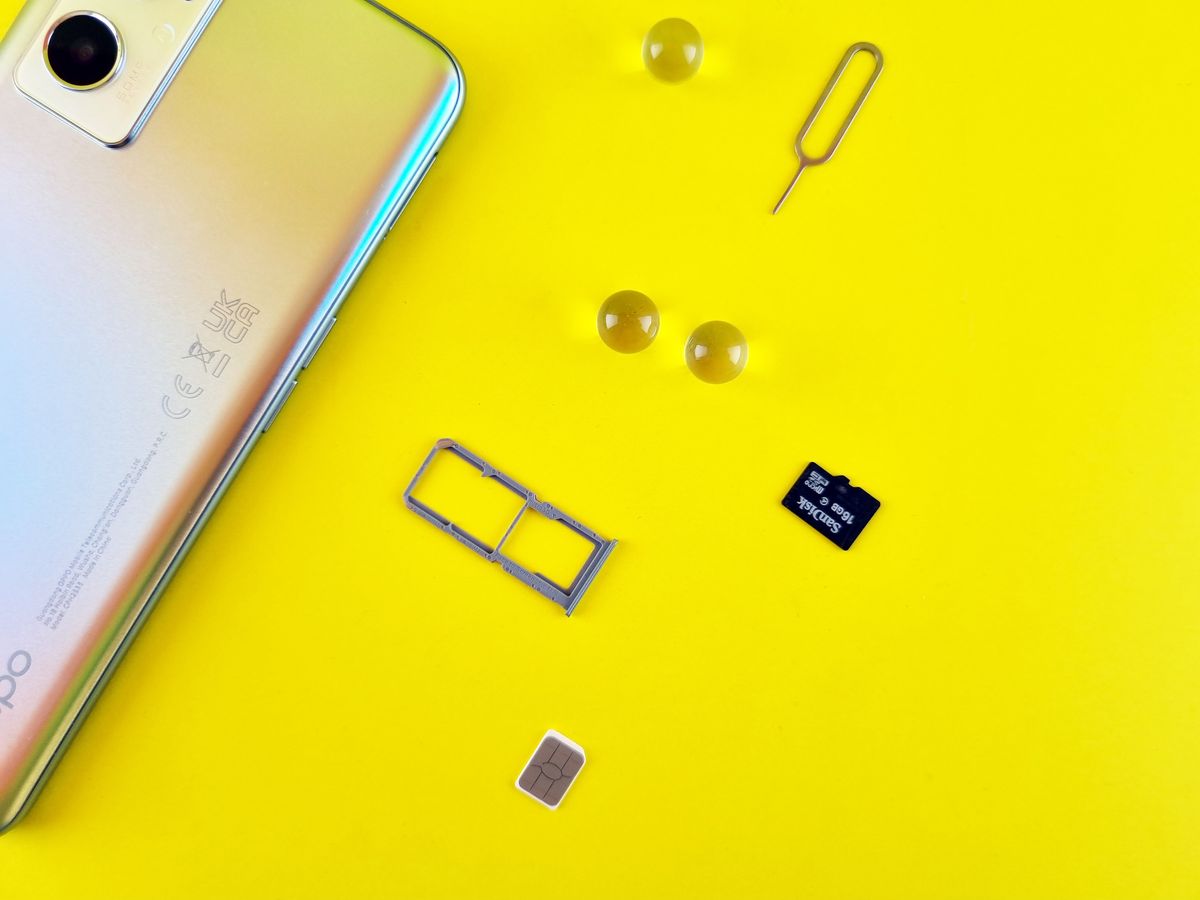
An eSIM profile is the digital package your carrier installs on your phone to connect it to a mobile network. Deleting it removes that package, and with it your calls, texts, and mobile data on that line. The phone itself is untouched, and no other apps or files are affected.
Deleting an eSIM sounds trivial, and the tapping part is. What trips people up is everything around the tap: billing keeps running after deletion, some carriers limit how many times you can re-download the same profile, and deleting your only working line can leave you stranded without service. This article explains what an eSIM does, the exact steps on iPhone and Android, and the checks to run before you press delete.
What deleting an eSIM actually does
When you delete an eSIM profile, your phone erases the carrier's authentication keys and network settings from the eSIM chip. The device disconnects from that carrier's network immediately, according to GlobalYo's eSIM guide. Any phone number tied to that profile stops working on the handset.
Two things deletion does not do. It does not wipe your photos, messages, or apps, and it does not cancel your contract. GlobalYo notes that you remain responsible for outstanding charges unless you formally cancel with the carrier.
Think of it like throwing away a house key: you can no longer get in, but the lease still exists.
The iPhone 14 and later US models can store up to eight eSIM profiles, with two active at once, as reported by Apple and documented on Simbye's iPhone 14 eSIM guide. That means most people are not deleting for space. They delete because they switched carriers, the profile glitched, or a travel plan expired.
How to delete an eSIM on iPhone
Apple's wording changes slightly between iOS versions, but the path has stayed stable for years. Start with your phone connected to Wi-Fi or another data line, so you can contact your carrier afterward if needed.
Open Settings and tap Cellular (or Mobile Data in some regions). You will see a list of installed plans, with eSIM profiles shown alongside any physical SIM lines. Tap the plan you want to remove.
At the bottom of the plan's page, tap Remove Cellular Plan, then confirm when prompted. On iPhones with a single eSIM, the button may read Delete eSIM instead.
The removal is immediate, according to Nomad eSIM's guide. Restart the phone afterward to clear cached network settings, a step EIOTCLUB's troubleshooting guide recommends after every removal.
If you ever want that number back, you will need a fresh activation. Nomad advises keeping your original QR code or asking the carrier to resend one, because the deleted profile cannot be recovered from the phone itself.
How to delete an eSIM on Android
Android labels the same action differently depending on the manufacturer, but the shape of the flow is the same. Samsung calls it SIM manager. Google Pixel phones tuck it under Network and internet.
Open Settings, then Network and internet (or Connections on Samsung). Tap SIMs or SIM card manager to see your installed profiles. Select the eSIM you want to remove.
Some phones ask you to toggle the profile off first. Nomad's guide notes that the toggle-off-then-remove order is common on Android.
Tap Remove, Erase, or Delete SIM profile, then confirm. Reboot the device when done. EIOTCLUB's guide stresses the restart because leftover network configuration can cause odd errors when you install a replacement profile later.
To reinstall later, open the same SIM manager, choose Add carrier or Add eSIM, and scan your carrier's QR code or type the SM-DP+ server address manually.
Before you delete: the safety checklist
Deleting the wrong profile at the wrong moment can cut you off entirely. Run through this list first.
Check that this is not your only working connection. Nomad warns that removing your sole active eSIM with no backup leaves you without service. If you have no second line and no Wi-Fi, do not delete until you have one.
Contact your carrier if you might reuse the same plan. Some carriers limit how many times a single eSIM profile can be downloaded, and deleting it may force you to request a brand-new one, as EIOTCLUB points out. A two-minute message to support can save you a store visit.
Save your activation details. Screenshot or print the original QR code and the SM-DP+ address. Holafly's transfer guide explains that moving a plan between phones is really a delete-and-reinstall, so having those details ready makes the whole process painless.
Confirm whether you still need the plan. Deleting the profile does not cancel service, so if you are leaving a carrier for good, cancel the plan separately. Otherwise the bill keeps arriving for a line you can no longer use.
Mistakes people make when deleting eSIMs
The most common mistake is treating delete as cancel. People remove the profile, assume the account is closed, and discover months of charges later. Call or message the carrier to close the account. The phone cannot do that part.
The second mistake is deleting a travel eSIM while still abroad. EIOTCLUB's guide describes travelers who removed a home-line eSIM and lost their authentication texts for banking apps mid-trip. If you must delete on the road, do it on reliable Wi-Fi and keep an alternate plan ready.
The third mistake is skipping the restart. Stale carrier settings lingering after removal can block a fresh install from activating. One reboot costs ten seconds and prevents most of the "new eSIM won't activate" errors that support forums are full of.
Does deleting an eSIM erase my phone number?
It erases the profile that carries the number on this device, but the number itself usually survives on the carrier's side. You can typically reactivate it on the same phone or a new one by asking your carrier for a new eSIM. Check with the carrier before deleting if the number matters to you.
Can I delete an eSIM and keep the carrier plan?
Yes. The profile and the plan are separate things. You can delete the profile and leave the plan active, then reinstall the profile later with a fresh QR code.
This is exactly what Holafly describes in its iPhone to Android transfer steps: remove from the old phone, reinstall on the new one, same account.
Should I deactivate instead of deleting?
If you might reuse the plan soon, deactivation is safer. On iPhone, switch the default data line instead of removing the plan. On Android, toggle the SIM off.
PuraSim's 2026 guide notes that deletion is irreversible while deactivation keeps the profile ready. For smartwatches with eSIM, the same logic applies.
The bottom line
Deleting an eSIM profile properly takes under a minute: back up the QR code, confirm it is not your only line, cancel the plan with the carrier if you are leaving, then remove the profile in settings and restart the phone. The tap itself is the easy part. Doing the checks around it is what keeps you connected and your bill clean.
Related stories

Apple plans two October launches: smart home hub, OLED MacBook Pro
Apple set October 13 for a smart home launch with a new hub, Apple TV 4K and HomePod mini, then October 27 for OLED MacBook Pro models
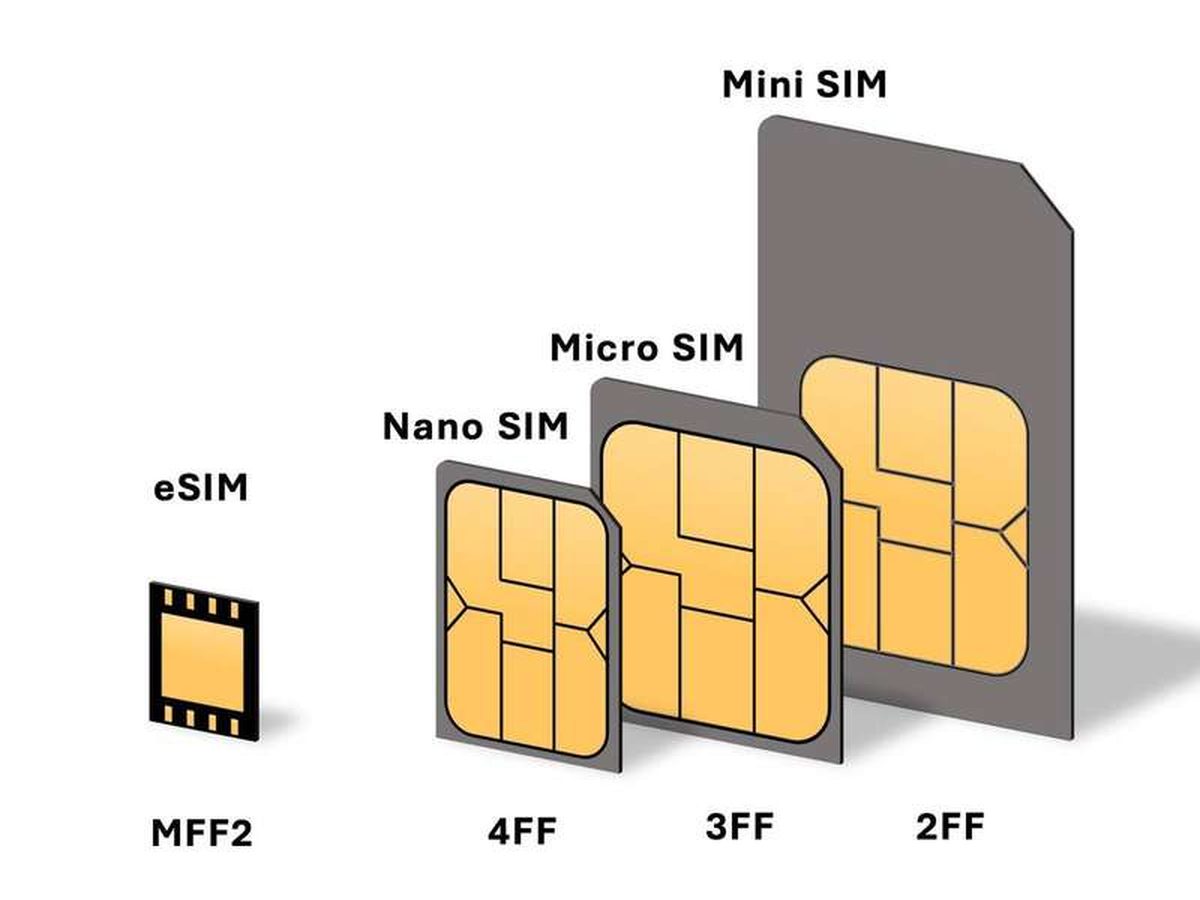
How to Check If Your Phone Supports eSIM in 30 Seconds
Dial *#06# and look for an EID number to confirm eSIM support in under 30 seconds. This guide also walks through the iPhone and Android
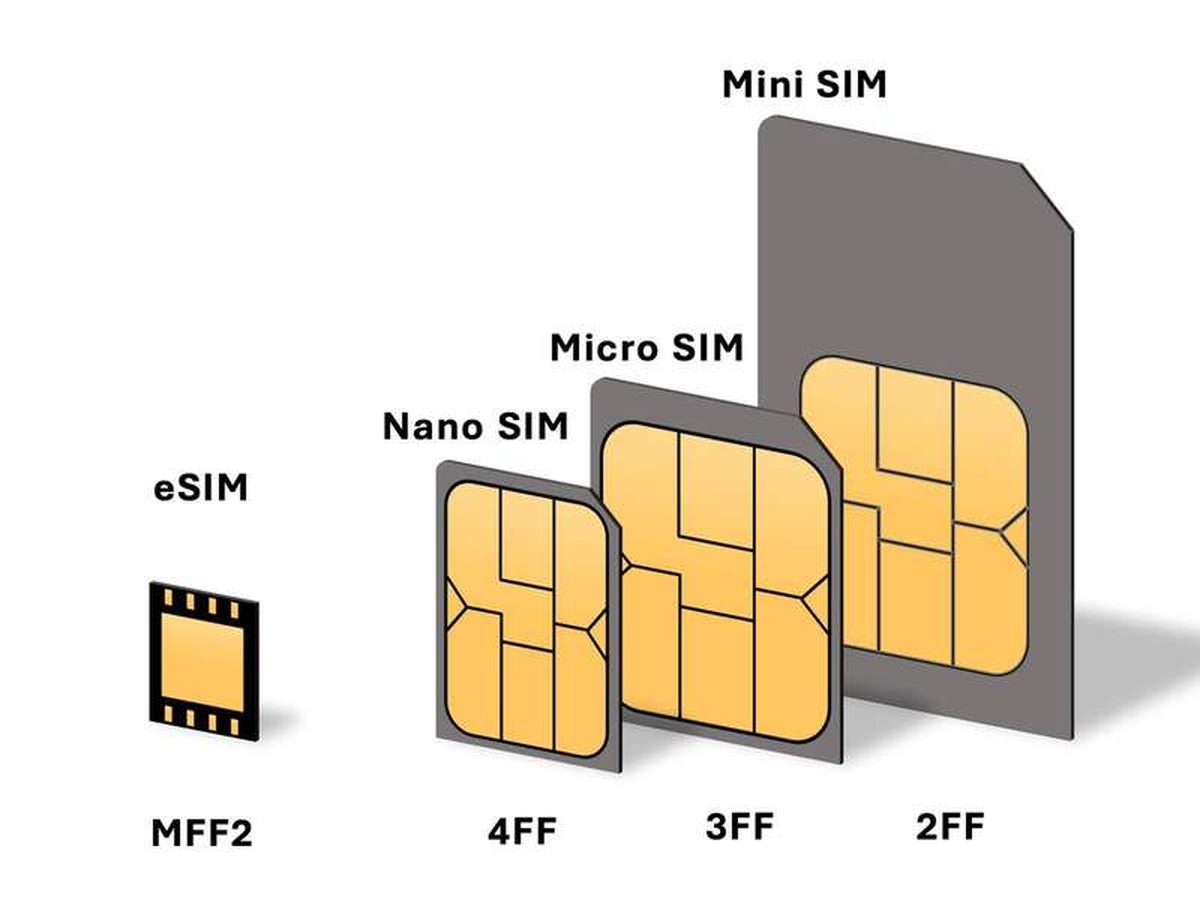
eSIM vs iSIM: what is the difference?
An eSIM is a dedicated chip on the phone's board, while an iSIM lives inside the processor itself. Qualcomm's Snapdragon 8 Gen