
SSD vs NVMe Storage: What the Difference Means Day to Day
Key takeaways
- SSD is the storage type, while NVMe is the faster way some SSDs connect to a computer.
- SATA SSDs top out near 550 MB/s, while PCIe Gen 4 NVMe drives reach about 7,000 MB/s.
- For everyday browsing and booting, both feel fast, so price and fit often decide the buy.
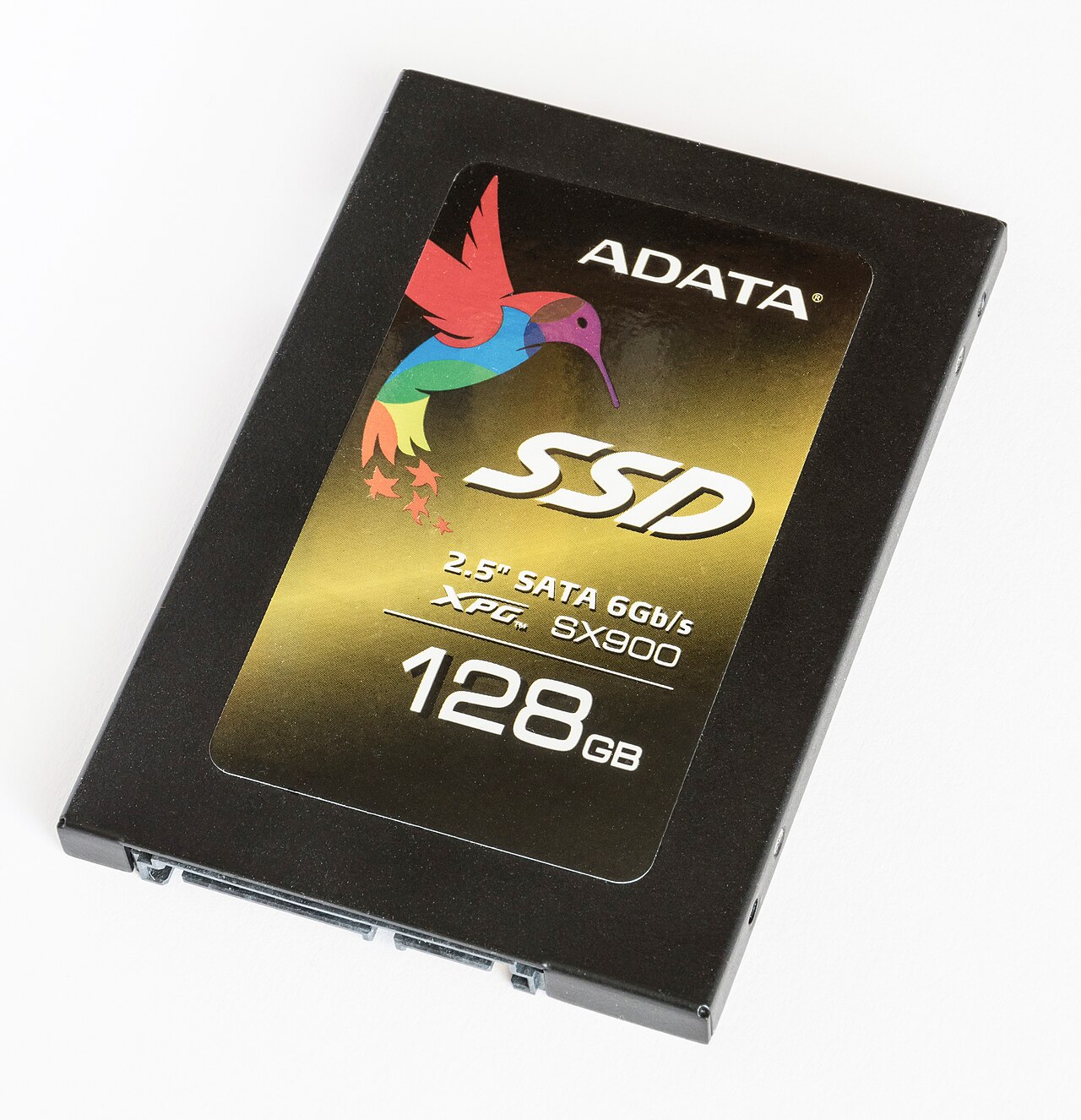
An SSD, or solid-state drive, is a storage device with no moving parts. It keeps your operating system, apps, and files on flash memory chips instead of spinning metal disks. That single change is why any SSD feels far quicker than an old hard drive.
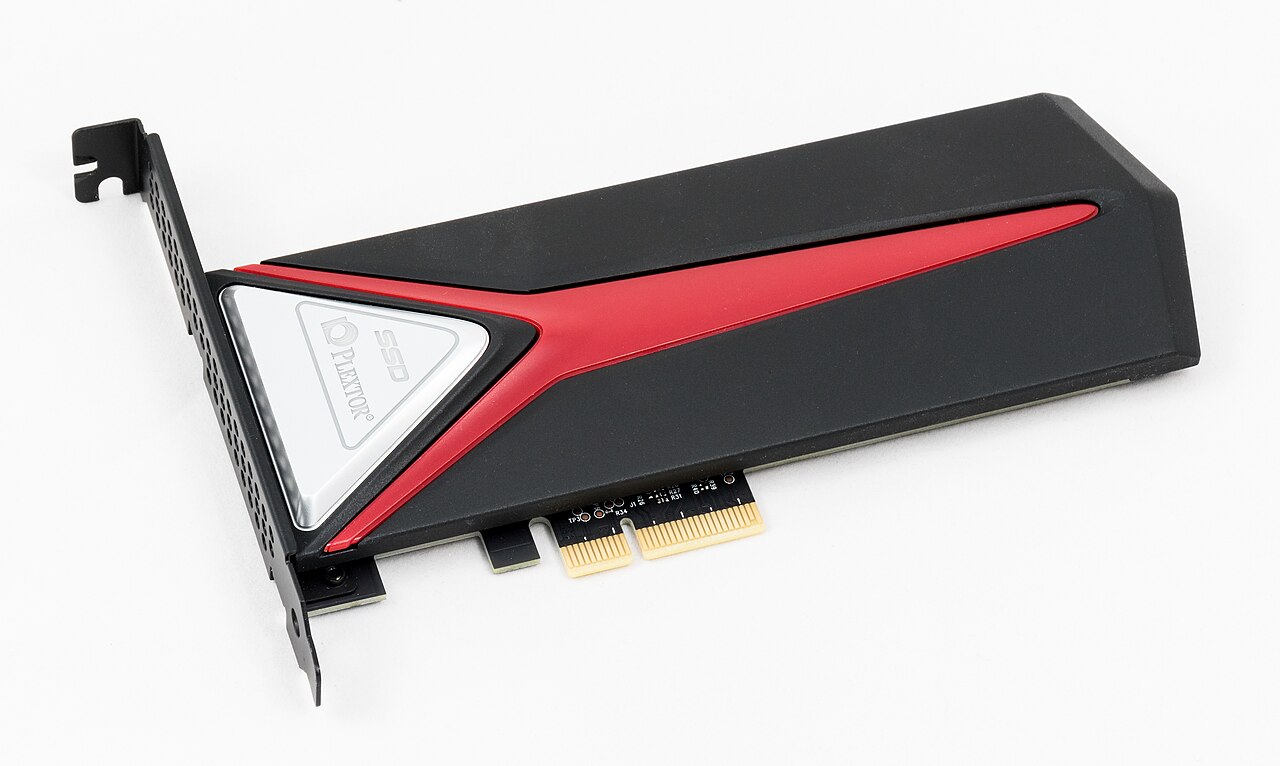
NVMe is not a different kind of storage chip. It is a protocol, a set of rules for moving data between the drive and the processor. NVMe drives use the PCIe connection, the same fast lane that graphics cards use, instead of the older SATA connection built for hard drives.
This article explains what SSD and NVMe each mean, including how the two connections shape speed, what the speed gap feels like day to day, how to pick between them, and what to check before you buy.
What SSD means, and what NVMe means
Every SSD stores data on NAND flash memory. The term SSD describes the device itself, not how it talks to the rest of the computer. Two SSDs can hold the same files and still behave very differently because their connections differ.
SATA SSDs use the SATA III interface, the same connection hard drives used for years. That interface caps out at 6 Gbps of bandwidth, according to TechTimes. After protocol overhead, real-world SATA SSD speeds land near 450 to 550 MB/s for sequential reads and writes.
NVMe stands for Non-Volatile Memory Express. It was designed for flash storage from the start, so it skips the old assumptions baked into SATA. NVMe drives connect through PCIe lanes and talk to the processor with far less waiting in line.
The naming confuses shoppers because stores sell both kinds under the SSD label. A box that says SSD might hold a SATA drive or an NVMe drive. The connector and the protocol, not the SSD label, tell you which one you are buying.
Think of it this way: SSD is the vehicle, and NVMe is the highway. A SATA SSD is a solid car on an older road with a strict speed limit. An NVMe SSD is the same kind of car on a wider, faster road built for modern traffic.
How the two connections shape speed
The gap starts with bandwidth. SATA III gives a drive one narrow path capped at 6 Gbps. PCIe gives an NVMe drive up to four lanes, and each lane gets faster with every PCIe generation.
PCIe Gen 3 NVMe drives reach around 3,500 MB/s in sequential reads, according to TechTimes. PCIe Gen 4 drives can pass 7,000 MB/s. Some PCIe Gen 5 models push past 10,000 MB/s, though they cost far more and suit heavy professional work.
Samsung lists its 990 PRO, a PCIe Gen 4 NVMe drive, at sequential read speeds up to 7,450 MB/s and writes up to 6,900 MB/s. Those figures sit near the top of what Gen 4 hardware can deliver. They show how far the ceiling has moved from the 550 MB/s world of SATA.
NVMe also handles multitasking better. TechTimes notes that NVMe drives handle more simultaneous command queues than SATA drives, which improves responsiveness when many tasks run at once. Copying a large video folder while a game updates in the background is the kind of load where that design pays off.
Latency matters too. SATA relies on the older AHCI protocol, which adds overhead to every request. NVMe trims that overhead because it was built for flash memory, not spinning disks.
The result is snappier response when the system juggles many small reads and writes.
Form factor follows the connection. SATA SSDs usually come in a 2.5-inch case and need two cables, one for data and one for power. NVMe drives usually come as slim M.2 sticks that plug straight into a slot on the motherboard, with no cables at all.
That cable-free design changes the inside of a computer. A build with M.2 drives has fewer cables to route and more room for airflow. Laptop makers also prefer M.2 because the slim shape leaves room for bigger batteries or thinner bodies.
What the speed gap feels like day to day
Raw speed numbers overstate the difference for ordinary tasks. Boot times show this clearly. A computer booting from a SATA SSD and one booting from an NVMe drive both land in roughly the same 10 to 15 second window, according to TechMitra.
Startup spends most of its time on hardware checks, not on reading files.
Opening a browser, launching a word processor, or loading a small app feels nearly identical on both drives. These jobs read small amounts of data, and both drive types answer fast enough that a person cannot tell them apart. For office work, email, and web browsing, a SATA SSD already feels instant.
Large file transfers are where NVMe earns its keep. Moving a 10 GB video file takes around 20 seconds on a SATA SSD and closer to 2 seconds on a fast NVMe drive, according to PlayTechZone. Video editors who shuffle multi-gigabyte footage all day feel that gap in every session.
Games sit in the middle. Level loads shrink on NVMe, but the gain is often seconds, not minutes. Once a game is loaded, the drive rarely decides the frame rate.
A graphics card and processor carry that load, so a faster drive will not rescue a slow GPU.
Heavy multitasking is the other place NVMe shows up. Editing 4K video while exporting a project and copying files stresses the storage queue. NVMe handles that pileup with fewer stalls.
A SATA drive can still do the job, but the wait grows as the queue grows.
Price narrows the choice for many buyers. EasyDriveCompare puts SATA SSDs near 0.08 to 0.12 pounds per GB and NVMe drives near 0.10 to 0.18 pounds per GB. The premium for NVMe has shrunk enough that Gen 3 and Gen 4 NVMe drives now suit most new builds.
One more practical split is console support. Sony PlayStation 5 storage expansion requires an NVMe SSD, not a SATA drive, according to EasyDriveCompare. If a console upgrade is on your list, SATA is not an option at all.
How to pick between them
Start with the job, not the spec sheet. A student laptop used for notes, browsing, and streaming needs capacity more than peak speed. A 1 TB SATA SSD often beats a 512 GB NVMe drive at the same price for that user.
A video editor, 3D artist, or developer who compiles large projects should lean NVMe. These workloads move big files constantly, and the time saved adds up across a week. PCIe Gen 4 hits the sweet spot for most of them, since Gen 5 gains stay small outside specialist work.
Gamers can go either way. A PCIe Gen 3 or Gen 4 NVMe drive is the natural pick for a new gaming PC, since prices are close to SATA now. Someone upgrading an older machine with only SATA ports gets most of the gaming benefit from a SATA SSD anyway.
Check what your machine supports before spending. Most modern motherboards include at least one M.2 slot, according to EasyDriveCompare. Older laptops and desktops may offer only SATA ports, and an NVMe drive cannot fit without the right slot.
Also check which PCIe generation each M.2 slot supports. A Gen 4 drive in a Gen 3 slot still works, but it runs at Gen 3 speed. The motherboard manual lists which slot runs at which speed, so read it before you install.
Capacity still beats peak speed for most buyers. A cramped drive forces constant file juggling, and a full drive slows down. Buy the capacity you need first, then pick the fastest connection that fits your budget and your slots.
Security habits matter as much as storage speed. A fast drive does not protect a weak password, so pair any upgrade with two-factor authentication and a check for leaked passwords. Those steps guard the data the new drive holds.
What to check before you buy
Read the spec sheet for the interface, not just the brand. Look for the words SATA III, PCIe Gen 3, PCIe Gen 4, or PCIe Gen 5. Those labels set the ceiling for the drive, whatever the marketing claims say.
Confirm the form factor. M.2 is a shape, not a speed: some M.2 drives still use SATA, so an M.2 slot alone does not prove a drive is NVMe. Check the protocol line in the specs to be sure.
Match the drive to the slot. A desktop board may mix Gen 3 and Gen 4 M.2 slots. Put the fastest drive in the fastest slot, and keep the slower slot for a second drive used for bulk storage.
Plan the install. SATA drives need a free SATA port, a SATA data cable, and a power cable from the power supply. M.2 drives need a free slot, a mounting screw, and sometimes a heatsink for sustained heavy writes.
Keep an eye on heat for Gen 4 and Gen 5 NVMe drives. Long writes can warm a bare drive enough to throttle speed. Many motherboards include a heatsink for the M.2 slot.
Backups still matter, whatever you buy. A faster drive is not a safer drive. Keep a copy of files you cannot replace on a second drive or a cloud service.
Is NVMe always better than SATA?
NVMe is faster on paper and in heavy workloads, but it is not always the better buy. For light daily use, the two feel alike, and a larger SATA SSD can beat a smaller NVMe drive. The right pick depends on the workload, the machine, and the budget.
Can I replace a SATA SSD with an NVMe drive?
Only if the machine has an M.2 slot that supports NVMe. Check the manual or the maker's spec page for the exact slot type. If the machine offers SATA only, a SATA SSD is the upgrade path.
Will an NVMe drive make my computer boot much faster?
Probably not by much. Both drive types boot in roughly 10 to 15 seconds because startup spends most of its time on hardware checks. NVMe shines more in file transfers, exports, and heavy multitasking than in boot times.
Does a higher PCIe generation matter for gaming?
Only a little. Gen 4 loads levels slightly faster than Gen 3, and Gen 5 gains stay small for games. Spend the difference on capacity or a better graphics card if gaming is the main job.
The bottom line
SSD names the storage, and NVMe names the fast connection some SSDs use. SATA SSDs cap near 550 MB/s, while Gen 4 NVMe drives reach about 7,000 MB/s, yet everyday tasks feel close on both. Buy the capacity you need, match the drive to your slots, and spend the speed premium only where big files or heavy multitasking make it pay.
Tags: SSD, NVMe, storage, PC upgrades
Latest in Tech
- How two-factor authentication stops hackers
- How to tell if a public Wi-Fi network is safe to use
- How to check if your email password leaked in a breach
- End-to-end encryption in plain English
Subscribe for one useful explainer each week, written in plain English.
Related stories

Apple plans two October launches: smart home hub, OLED MacBook Pro
Apple set October 13 for a smart home launch with a new hub, Apple TV 4K and HomePod mini, then October 27 for OLED MacBook Pro models
How to Check If Your Phone Supports eSIM in 30 Seconds
Dial *#06# and look for an EID number to confirm eSIM support in under 30 seconds. This guide also walks through the iPhone and Android
eSIM vs iSIM: what is the difference?
An eSIM is a dedicated chip on the phone's board, while an iSIM lives inside the processor itself. Qualcomm's Snapdragon 8 Gen