
Why Is Your eSIM Not Working Abroad? How to Fix It
Key takeaways
- Most travel eSIM failures come down to five fixable settings: carrier lock, activation timing, data roaming, the default data line, and the APN.
- Travel eSIMs connect through partner networks. Data roaming must be switched ON for the eSIM line, even though that feels wrong.
- A carrier-locked phone will block any eSIM from another provider. Check for "No SIM restrictions" on iPhone before you fly.
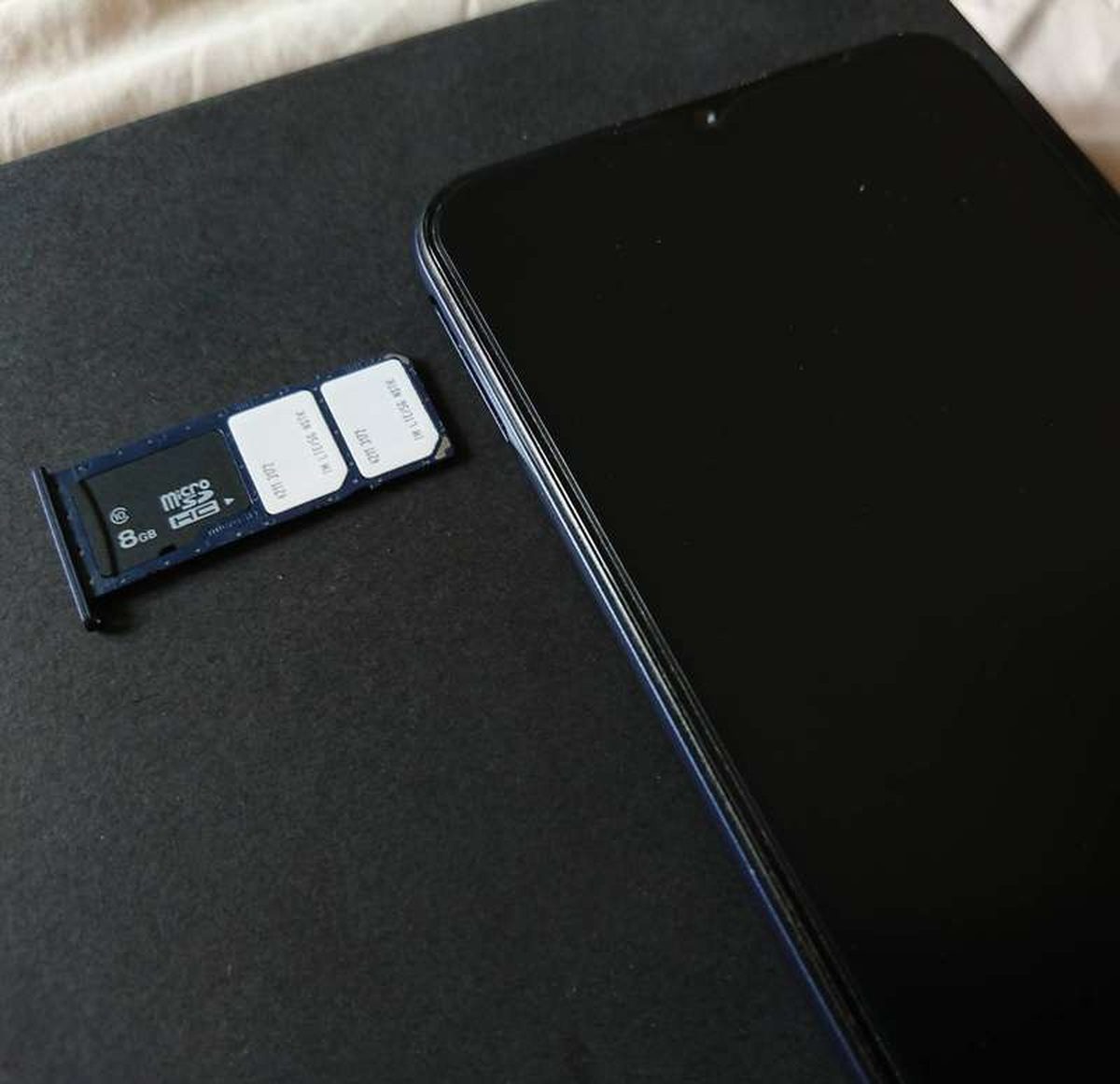
A smartphone with its dual SIM tray removed. eSIMs replace these plastic cards with a downloadable profile. Photograph: Paowee/Wikimedia Commons
Image Credits: Wikimedia Commons
An eSIM is a digital SIM profile stored on a chip inside your phone. Instead of swapping a plastic card, your carrier details download as software. A travel eSIM does the same thing for a foreign data plan.
Abroad, that profile has one job: register your phone on a partner network in the country you are visiting. When any link in that chain breaks, you get "No Service" or full bars with no internet.
This article explains how travel eSIMs connect abroad: what your phone needs before it can register on a foreign network, the five most common reasons connections fail, a step-by-step diagnostic checklist, and what to do before your next trip.
What your eSIM needs to connect abroad
A travel eSIM is not magic. It is a roaming agreement in software form.
Your eSIM provider does not own cell towers in the country you visit. Instead, it has partnerships with local carriers. Your phone connects to the internet by roaming onto one of those partner networks. This detail explains most of the confusion in this guide. Several settings on your phone behave differently for a roaming eSIM than they do at home.
Four things must all be true at once: the phone must accept third-party eSIMs, the profile must be installed and activated in the right order, the phone must be set to use the eSIM for mobile data, and the data settings (especially the APN) must match the partner network.
Miss any one and the symptom looks the same: nothing works. So work through the causes in order instead of guessing.
The five most common reasons it fails
1. Your phone is carrier locked
This is the hardest failure and the one no restart can fix. A carrier-locked phone will refuse to use any SIM, physical or eSIM, from another provider. The profile may even install successfully, which makes the problem extra confusing. Everything looks fine until you notice there is no service.
On an iPhone, you can check this before you leave. Go to Settings, then General, then About, and scroll to Carrier Lock. If it reads "No SIM restrictions," your phone is unlocked.
Anything else means the phone is still tied to your home carrier, per eSIM provider Simology's troubleshooting guide.
Most major carriers unlock phones after 30 to 90 days of active service, or immediately for devices that are fully paid off, Simology notes. If your phone is locked, the fix is a call to your home carrier before the trip, not a settings change at the airport.
2. The profile was activated in the wrong order
Timing matters more than most travelers expect. Many eSIMs are designed to be installed at home over Wi-Fi and activated only when you land.
Install too early and leave the profile switched on, and some providers start the plan's validity clock immediately. Install at the airport on shaky Wi-Fi and the download can fail halfway.
The reliable sequence, described by travel tech writer Unfinished Man: install at home on solid Wi-Fi, keep the eSIM plan off until you land, then switch it on with data roaming once you are on the ground. Some third-party eSIMs also need a few minutes to register on first connection. Carrier activations can take up to 7 hours in slow cases, so give it time before assuming it is broken.
3. Data roaming is switched off
This is the most common fix, and it feels wrong. You learned to keep roaming off abroad to avoid surprise bills. But your travel eSIM connects precisely by roaming onto a partner network, so roaming must be ON for the eSIM line.
On iPhone, that means Settings, then Cellular, then your eSIM plan, then Data Roaming set to ON. On Android, it is usually under Settings, then Network, then SIMs, then your eSIM, with Roaming toggled on.
Keep roaming OFF on your home line so it does not pick up charges in the background. Both OneSimCard and Simology flag this as the first thing to check when data will not connect.
4. Your phone is still using the home SIM for data
Dual-SIM phones need to be told which line carries mobile data, and they do not always guess right. A frequent mistake, highlighted by OneSimCard, is installing the eSIM correctly but leaving the home SIM selected as the default data line. Everything looks installed and active, yet every byte still tries to route through the line with no plan.
On iPhone, go to Settings, then Cellular (or Mobile Data), and set Cellular Data to your eSIM. On Android, the equivalent is under SIM Manager or Mobile Network settings. If you want to be thorough, you can temporarily disable your primary SIM entirely and test with only the eSIM active. That removes any ambiguity about which line is doing the work.
5. The APN settings are wrong or missing
Signal bars with no internet almost always point here. The APN, or Access Point Name, tells your phone the exact gateway to use for mobile data on a given network. Most eSIMs push the correct APN automatically when the profile installs. But a phone restart or a software update can wipe it or let the wrong one take over.
On iPhone, the path is Settings, then Cellular, then your eSIM line, then Cellular Data Network. There you can enter the APN value from your provider's confirmation email. On Android, look under Settings, then Mobile Network, then Access Point Names.
The value itself is provider-specific (for example, OneSimCard uses "OSC"). Take it from your own provider's instructions rather than a forum guess. Leave username, password, and proxy fields blank unless your provider says otherwise.
One edge case worth knowing: on multi-country eSIMs, the correct APN can change when you cross a border. The profile switches to a different partner carrier. If your connection dies exactly at a border crossing, re-check the APN against your provider's guide for the new country, as eSIM provider Blivale documents.
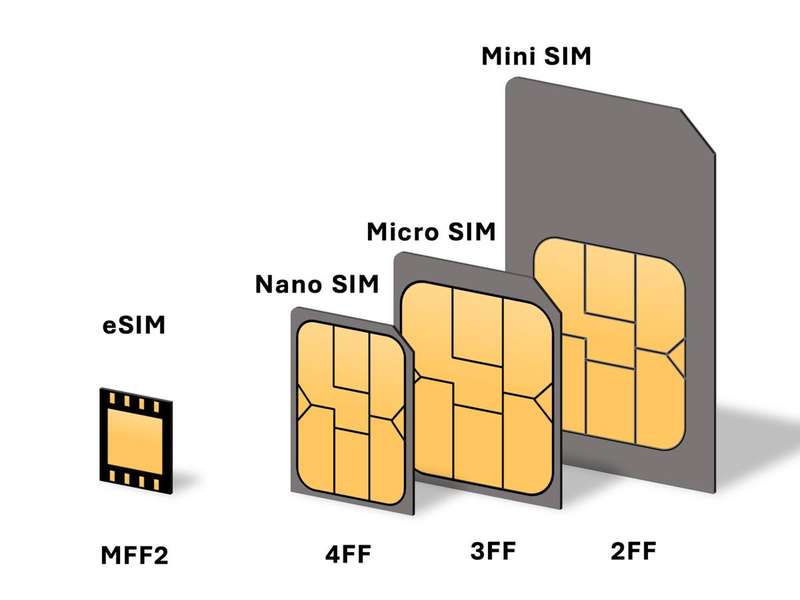
SIM card sizes compared. An eSIM removes the physical card entirely, but the network settings it replaces still have to be exactly right. Photograph: En rouge/Wikimedia Commons
Image Credits: Wikimedia Commons
Step-by-step: diagnosing the problem
Work through these in order. Stop as soon as something works.
- Confirm the basics. Is the eSIM plan active, not expired, with data remaining, and does it cover the country you are in? It sounds obvious, but providers report this as one of the most common real causes.
- Toggle airplane mode. Switch it on, wait 30 seconds, switch it off. This forces the phone to rescan for networks and re-register the eSIM.
- Check the lock and the line. Verify carrier lock status (iPhone: Settings, General, About, Carrier Lock) and confirm the eSIM is selected as the default data line.
- Turn on data roaming for the eSIM only. Leave your home line's roaming off.
- Restart the phone. This clears temporary registration glitches that airplane mode sometimes misses.
- Manually select a network. Turn off automatic network selection and try each available carrier in the list, waiting a minute between attempts. Automatic selection does not always pick the partner your eSIM expects.
- Check the APN. Enter the value from your provider's setup email exactly as written.
- Reset network settings as a last resort. This wipes saved Wi-Fi passwords and network preferences, so back those up first. It does not delete installed eSIM profiles, per multiple provider guides.
If nothing here works, the problem is almost certainly on the provider's side: no partner coverage where you stand, or an activation that never completed. Move somewhere with clearer signal. Then contact support with your phone model, the country, and the steps you tried.

Scanning a QR code is the most common way to install an eSIM profile. Do it at home on reliable Wi-Fi, not on airport networks. Photograph: Tomsimon67/Wikimedia Commons
Image Credits: Wikimedia Commons
Before your next trip
Ten minutes of preparation the night before you fly prevents most eSIM pain.
Check that your phone is carrier unlocked and that the destination is on your plan's coverage list. Install the eSIM over home Wi-Fi, keep it toggled off, and label it clearly in your settings. Then you can find it while jet-lagged in an arrivals hall. Screenshot your provider's APN value and support contact details. You may not have internet when you need them.
Decide in advance what to do with your home line. Turning it off kills roaming charges but also incoming calls and texts, including bank verification codes. A common compromise: keep the home line on with data routed away from it, and use Wi-Fi calling for messages.
The bottom line
An eSIM that will not work abroad is almost never a mystery. It is a settings problem: unlock status, activation order, data roaming on the eSIM line, the correct data line, and the right APN.
Run the checklist in order and resist the urge to change three things at once. When you find the one that was wrong, you will also know exactly what to check first on your next trip.
Frequently asked questions
Do I need data roaming turned on for a travel eSIM?
Yes. Travel eSIMs reach the internet by roaming onto local partner networks, so the data roaming toggle must be on for the eSIM line specifically. Keep it off on your home line to avoid charges there.
Will resetting my network settings delete my eSIM?
No. A network settings reset clears saved Wi-Fi networks, Bluetooth pairings, and APN values, but installed eSIM profiles stay in place. You will need to re-enter the APN afterward, so save it first.
Can I install my travel eSIM before I leave home?
Yes, and you should. Install over reliable home Wi-Fi and leave the plan toggled off until you land. Airport Wi-Fi is a common point of failure for profile downloads, and some plans start their validity clock at activation.
Why does my eSIM work in one country but not the next?
Multi-country eSIMs switch partner carriers at each border, and the correct APN can change with the carrier. If the connection dies exactly at a border crossing, check your provider's guide for the new country's APN value.
---
Rive News is the research desk behind these explainers. We verify every claim against public sources before publishing.
Related stories
- Jet Lag: The Best Way to Recover Flying East vs. West
- How Vaccines Train the Immune System: Antibodies and Memory Cells
- Why Paying Only the Minimum Keeps You in Debt
Get one practical explainer in your inbox every morning. Subscribe to the Rive News newsletter.
Rive News follows a public corrections policy. If you spot an error, tell us and we will fix it visibly.
Related stories

Apple plans two October launches: smart home hub, OLED MacBook Pro
Apple set October 13 for a smart home launch with a new hub, Apple TV 4K and HomePod mini, then October 27 for OLED MacBook Pro models
How to Check If Your Phone Supports eSIM in 30 Seconds
Dial *#06# and look for an EID number to confirm eSIM support in under 30 seconds. This guide also walks through the iPhone and Android
eSIM vs iSIM: what is the difference?
An eSIM is a dedicated chip on the phone's board, while an iSIM lives inside the processor itself. Qualcomm's Snapdragon 8 Gen