
What happens to your data when you delete an app, explained
By Rive News / Research desk | Rive News / Published October 24, 2026 at 9:00 AM PKT
Key takeaways
- Deleting an app removes the software and its local data from your phone, but anything stored on the company's servers usually stays behind.
- On iPhone, Delete App wipes local data while Offload App keeps it; on Android, uninstalling removes the app but not your account or server data.
- Deleting an app does not cancel subscriptions or erase your account. To truly remove your data, request deletion through the service's own account settings.
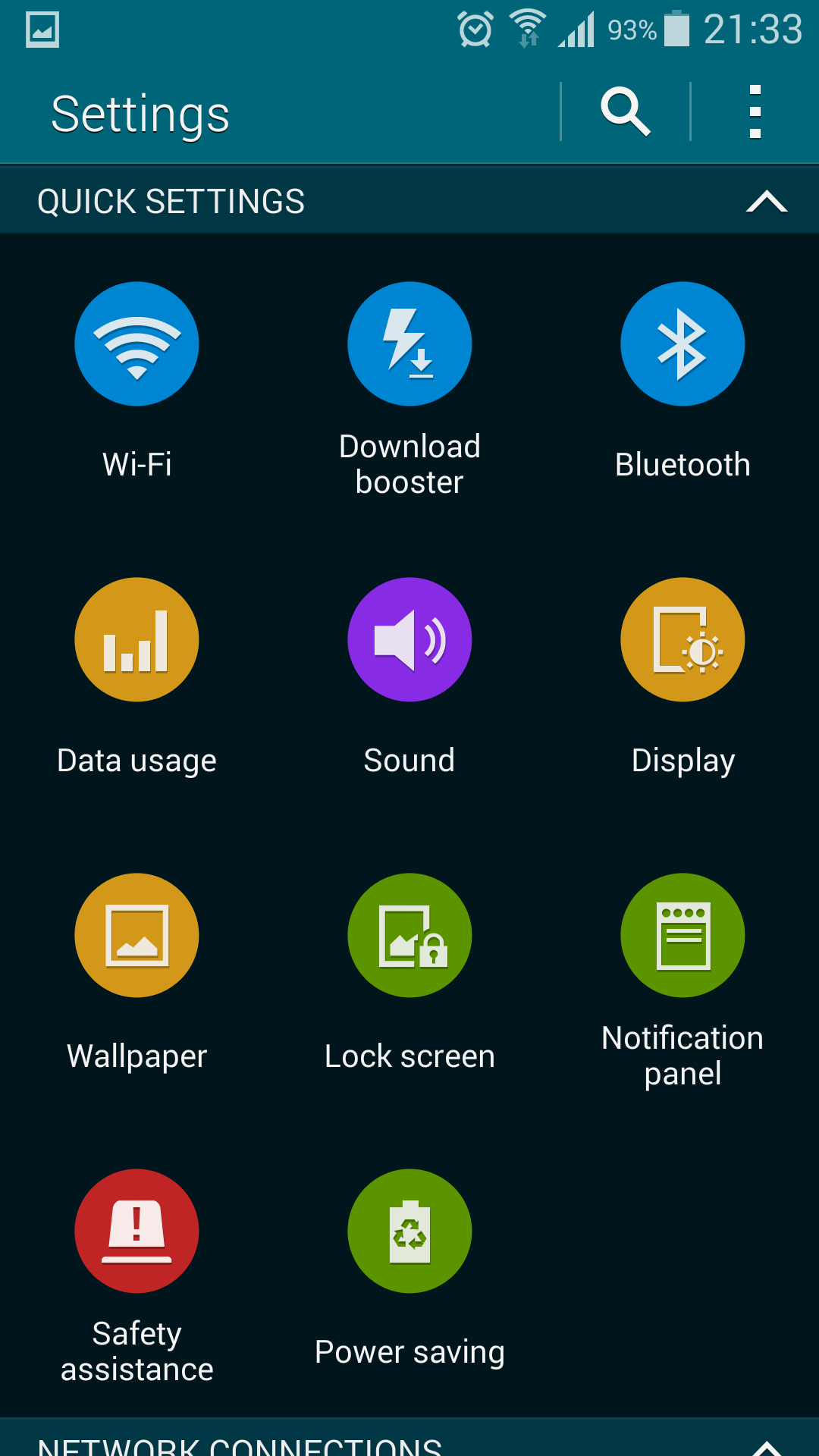
[An Android phone settings menu, where app-level options like uninstall, clear storage, and permissions are managed. Photograph: Samsung Mobile user interface]
Image Credits: Wikimedia Commons
Deleting an app feels final. You press the icon, confirm the removal, and watch it vanish from your screen. It is natural to assume your data vanished with it.
It usually did not. Deleting an app means deleting the software on your phone, not deleting the data tied to your account. The distinction between the app and the account behind it is the single most misunderstood part of phone storage.
This article explains what happens to your data when you delete an app, including where your data actually lives, how iPhone handles offloading versus deletion, how Android handles uninstalling versus clearing storage, and how to truly remove your data.
Where your data actually lives
Your app data exists in two separate places. Local storage sits on your phone: downloaded content, cached images, saved settings, and offline files. Server storage sits on the company's computers: your account profile, messages, photos you uploaded, purchase history, and usage records.
Deleting the app only touches the first of these. Your phone wipes the local files, which is why the storage comes back. The server copy remains untouched, because your phone never had the authority to erase someone else's database.
TechBuzz Asia puts it plainly with a rental analogy: moving out of an apartment removes your furniture, but the landlord still holds your rental application, payment history, and deposit records. Uninstalling an app is the moving-out part.
This is why reinstalling an app and signing back in can restore so much. iTech Post notes that a deleted social media app can return your profile, old posts, followers, uploaded media, and preferences the moment you log in again.
Nothing was deleted from the service. Only the copy on your phone was.
A number makes the local side concrete. Research firm SafetyDetectives found in 2026 that installing the top 50 iOS apps takes roughly 17.5 GB of storage, compared with about 6.4 GB for the same set on Android. On top of that, 8% to 15% of an iPhone's advertised storage is reserved for the operating system before you install anything.
That is the pile of local data you reclaim when you delete, and it says nothing about what the servers keep.
iPhone: offloading is not deleting
Apple gives you two buttons that sound similar and do very different things. Gadgets Now's FAQ draws the line clearly: "Delete App" removes the app and its associated local data, while "Offload App" removes the app software but retains its documents and data.
Offloading frees the space the app itself occupies while keeping your documents, settings, and saved progress in place. Apple's support documentation describes it exactly this way, and the app icon stays on your home screen with a small cloud badge. Tap it later and the phone re-downloads the app and reconnects it to the preserved data.
That distinction matters most when the app's documents are larger than the app itself. Some games and document apps accumulate hundreds of megabytes of local files while the app binary stays small. Offloading those barely dents the total, because it only removes the binary.
Only deletion clears both.
But do not confuse local data with server data either way. Neither option deletes your photos from iCloud, and files you saved to the Photos app or the Files app stay where they are.
Apple also warns that deleting an app does not cancel an associated in-app subscription. The payment lives in your Apple account, not in the app, so it keeps billing until you cancel it in Settings.
If you only wanted the icon gone, there is a third option with no data consequences at all. "Remove from Home Screen" hides the icon but leaves the app fully installed in the App Library, as Gadgets Now points out. Nothing is deleted and nothing is freed.
[The system settings screen of a phone, where storage and app options are managed before deletion. Photograph: X-SHLIED]
Image Credits: Wikimedia Commons
Android: uninstalling is not erasing
Android splits the job into uninstall, clear cache, and clear storage, and each one touches a different layer.
Uninstalling removes the app and generally its private local data, while clearing cache removes temporary files without uninstalling anything. Clearing storage wipes the app's local data but leaves the app itself installed.
Clear storage is the aggressive one. It resets the app to a fresh state, signs you out, and can erase content that never synced to the cloud, according to Gadgets Now.
It is useful for reclaiming space or fixing a misbehaving app, but it is not a privacy tool. Anything already synced to your account survives it.
Some Android phones also offer app archiving, which removes most of the app software while keeping your personal data, similar in spirit to iPhone's offloading. Menu names vary by manufacturer, so the exact path usually starts at Settings, then Apps, then the app name. The underlying principle does not change with the menu wording.
That principle is the same one as on iPhone: your account data lives elsewhere. iTech Post reports that Google explains deleting an app does not necessarily remove information the developer already collected.
Names, email addresses, messages, photos, purchase records, device diagnostics, usage history, and even location data can remain on company servers after the app is gone. Google also notes that some information may be retained for security, fraud prevention, or regulatory compliance.
The local-versus-server split also explains why a fresh install can feel like nothing changed. If your messages, contacts, or game stats sync to the cloud, wiping local data just removes the on-device copy. Sign back in and the service hands it all back.
How to truly remove your data
Deleting the app and deleting your account are separate actions, and iTech Post states the rule bluntly: "This is why delete app and delete account should not be treated as the same action." Your account can live for years on a company's servers after you remove its app, still holding your profile, history, and advertising data.
So the first real step is to delete the account, not the app. Most services bury this in Settings under Privacy, Account, or Data, and many now offer a self-serve deletion page in their privacy portals. Follow the service's own account-deletion process rather than assuming the uninstall button covered it.
Second, cancel any subscription before you delete anything. Removing a streaming, fitness, or productivity app does not cancel recurring payments.
On iPhone, cancel through Settings under your Apple account subscriptions; on Android, cancel through the Google Play subscriptions page. Gadgets Now is explicit that payments continue until you cancel through the provider or the platform's subscription settings.
Third, check the backups. Your phone may have copied the app's local data into iCloud or Google backups, which survive the uninstall. If you want that copy gone too, review what your backup includes and remove the app's data from the backup or delete old backup snapshots.
Fourth, read the privacy policy for retention terms. Some companies keep anonymized analytics or transaction records after deletion for legal or fraud-prevention reasons, and the policy is where they have to say so. If the policy promises deletion within a specific window, hold them to it.
Fifth, revoke permissions and third-party access. If the app connected to your Google account, Apple ID, or social logins, remove it from those connected-apps lists. An unused integration can keep pulling data long after the app is gone.
Finally, keep a record. Screenshot the deletion confirmation and the cancellation receipt. If the data resurfaces later, you have proof of the request and the date you made it.
Frequently asked questions
If I delete an app and reinstall it, will my data come back?
Local-only data will not come back. Anything that synced to your account, such as messages, contacts, cloud photos, or game stats, can return the moment you sign in again. Check whether the app syncs before you assume deletion erased it.
Does deleting an app cancel my subscription?
No. Deleting an app does not cancel subscriptions on either iPhone or Android, and recurring payments continue until you cancel through Apple's or Google's subscription settings or directly with the provider. Always cancel first, then delete.
What is the difference between offloading and deleting an app on iPhone?
Offloading removes the app software but keeps its documents and data, so reinstalling restores everything. Deleting removes the app and its local data together, leaving a fresh install. Neither option deletes your account or your server-side data.
How do I completely delete my data from an app's servers?
Delete your account through the service's own account-deletion process, cancel subscriptions, remove the app from cloud backups and connected-app lists, and check the privacy policy for stated retention windows. Deleting the app alone does not remove server-side data.
The bottom line
Deleting an app clears your phone's storage but leaves your account, your subscriptions, and your server-side data intact. The real privacy work happens in the service's account settings: delete the account, cancel the subscription, and revoke access. If you only remember one thing, make it this: the app and the account are two different things, and only one of them disappears when you tap delete.
Tags: app data, privacy, iPhone, Android
The Rive News research desk covers consumer technology with explainers grounded in platform documentation and published reporting.
Related
- How dual eSIM works on iPhone: two active lines explained
- Can an eSIM be hacked or cloned? The honest security answer
- Why Do Phone Cameras Stick Out So Far? Physics, Sensors, Zooms
Subscribe for weekly explainers that separate what your phone actually does from what it feels like it does.
Rive News publishes explainers reviewed against platform documentation and independent reporting; corrections are issued when sources update.
Related stories

Apple plans two October launches: smart home hub, OLED MacBook Pro
Apple set October 13 for a smart home launch with a new hub, Apple TV 4K and HomePod mini, then October 27 for OLED MacBook Pro models
How to Check If Your Phone Supports eSIM in 30 Seconds
Dial *#06# and look for an EID number to confirm eSIM support in under 30 seconds. This guide also walks through the iPhone and Android
eSIM vs iSIM: what is the difference?
An eSIM is a dedicated chip on the phone's board, while an iSIM lives inside the processor itself. Qualcomm's Snapdragon 8 Gen