
Why your phone gets slower when storage is nearly full
By Rive News / Research desk | Rive News / Published October 28, 2026 at 9:00 AM PKT
Key takeaways
- A phone needs free storage as working space for cache files, updates, and background tasks, not just for new photos.
- Problems often start once less than 10 percent of storage is free, according to Samsung-focused reporting.
- Flash memory also writes more slowly when nearly full, because its controller has fewer empty blocks to work with.
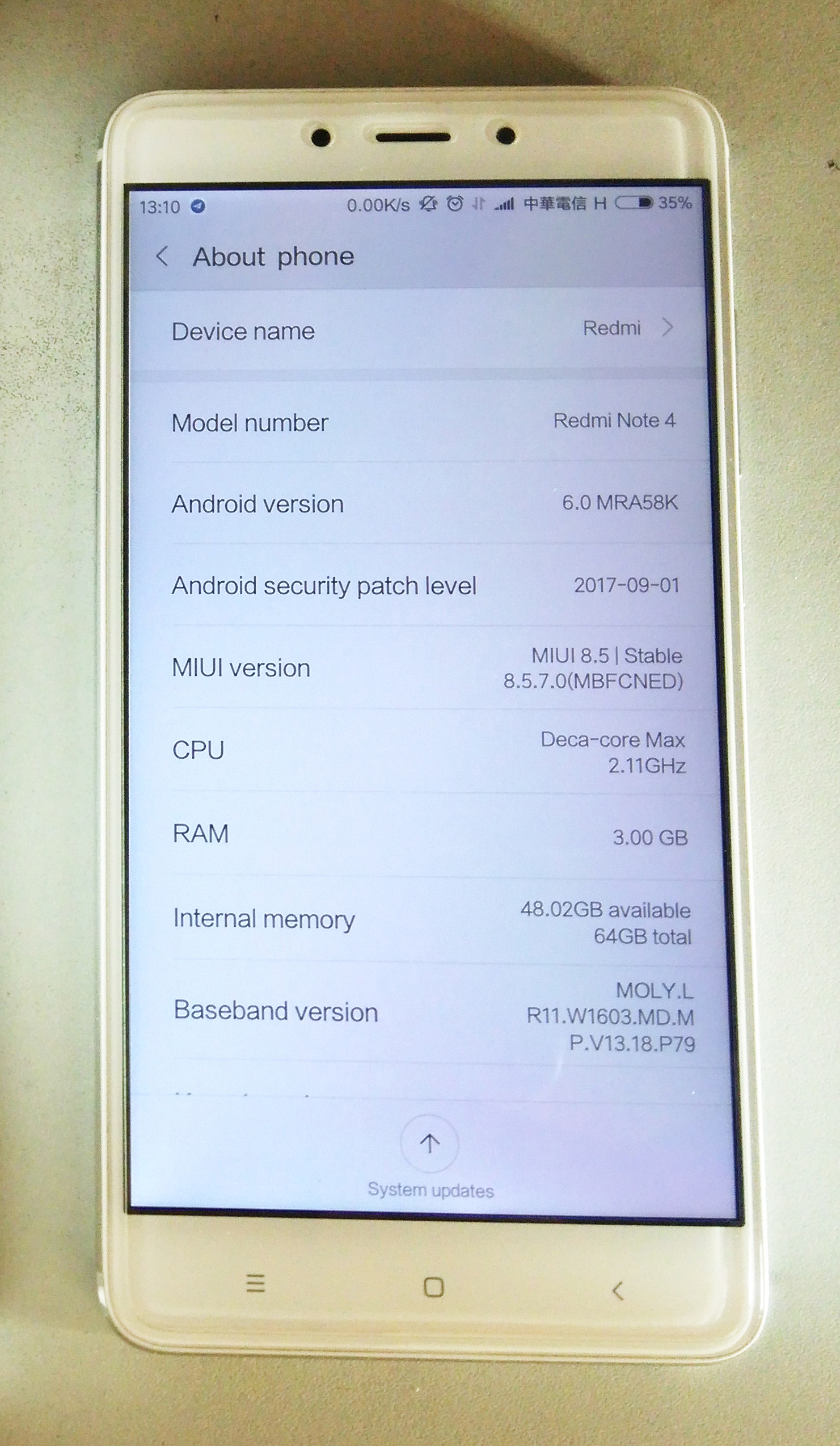
[A smartphone in everyday use, the kind of device that slows down as its storage fills up.] Photograph: Xiaomi Redmi Note 4 handset photo
Image Credits: Wikimedia Commons
Phone storage is the permanent memory where your apps, photos, videos, and system files live. It is different from RAM, the short-term memory your phone uses while apps are open. When that permanent storage is nearly full, the phone loses the spare room it needs to do routine work behind the scenes.
This article explains why a nearly full phone slows down, including how flash memory works, what the system does with free space, and how much room to keep free.
What your phone does with free space
Your phone writes temporary files all day, even when you are not saving anything yourself. Apps store cache files so they can open faster next time. The system creates logs, downloads update packages, and processes photos and videos in the background.
Samsung's own support guidance states that running out of storage space on a Galaxy phone can slow down performance and prevent new apps from installing or photos from being captured. That is the practical version of a deeper technical point: the operating system treats some free space as working room, and it struggles when that room disappears.
WhistleOut's guide to slow Android phones puts the trouble threshold at less than 10 percent free storage. At that point, apps are often slow to open, and the phone may warn that space is running out.
Why flash memory slows down when full
Modern phones use flash memory, usually in a standard called UFS, or Universal Flash Storage. Flash memory cannot overwrite data in place the way older hard drives could. To write into an occupied area, the memory controller must first erase a whole block of cells, and blocks are much larger than the small pages that are written one at a time.
When plenty of free blocks exist, the controller can erase and prepare them in advance. When storage is nearly full, that margin disappears.
Each new write may have to wait while the controller erases a block, moves surviving data elsewhere, and then writes the new data. The result is longer waits for ordinary actions such as saving a photo or opening an app.
Two background processes make this worse when space is tight. Wear leveling spreads writes evenly across the memory so no single area wears out early.
Garbage collection gathers still-valid data together and frees blocks that are no longer needed. Both need spare blocks to shuffle data into, and both stall when the drive is packed.
How-To Geek tested this directly, benchmarking sequential read and write speeds at different free-space levels on a smartphone. The tests showed that even a few gigabytes of free space had a marked effect on sequential read speeds, and that a nearly full phone struggled with basic tasks such as opening apps and typing.
What actually eats the space
Photos and videos are usually the biggest single category, especially 4K video clips. Offline downloads are a quiet second: music, streaming shows, and map areas saved for trips can each take gigabytes, and they stay on the phone long after the trip ends.
Messaging apps add to the pile without asking. Every photo and video shared in a busy group chat is saved on the device unless you change the settings. App caches grow the same way, since social and browser apps keep copies of images and pages to load faster.
System files and updates also need room. An operating system update downloads as a large package and needs extra space to unpack and install it. If that space is not there, the update fails, and the phone keeps running older software with its older bugs.
How much free space to keep
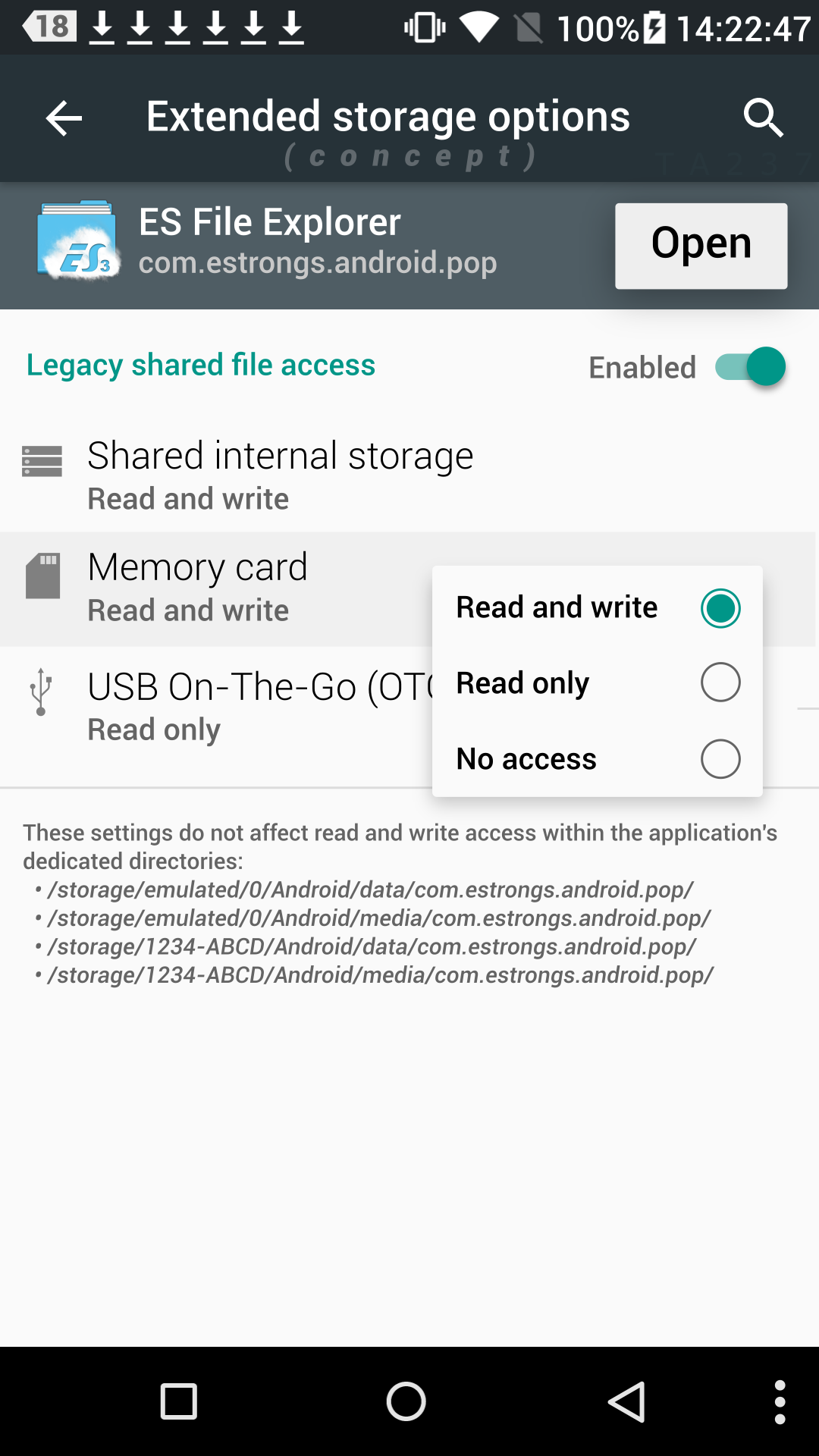
[An illustration of Android extended storage options, the settings area where extra space can be managed.] Photograph: Android storage options concept
Image Credits: Wikimedia Commons
The commonly cited rule is to keep at least 10 percent of total storage free, and 15 percent if you can manage it. SamMobile applies the same rule to Samsung phones, noting that on a 128GB phone, 10 to 15 percent means roughly 13 to 19GB free. Once a phone passes 85 to 90 percent full, most users notice a difference in responsiveness, according to the same report.
That percentage matters more than a fixed number of gigabytes. A phone with 512GB of storage can hold far more data, but its flash controller still needs the same proportional margin to manage blocks efficiently.
Think of the target as a floor, not a goal. If you free space down to exactly 10 percent and then shoot a weekend of video, you are back in the slow zone within days. Aim for 15 to 20 percent if your phone holds a lot of media.
What to clear first
Start with the biggest wins. Back up photos and videos to a cloud service, then use the service's free-up-space option to remove the local copies. On a Samsung phone, Samsung's support pages point users to Settings, then Device Care, then Storage, where files are broken down by category.
Next, remove apps you have not opened in months. Newer Android versions can also archive an app, which removes most of its size while keeping your data for a later reinstall. Check downloads and messaging media too, since both accumulate files you have already seen.
Clearing an app's cache is a smaller, safe step. Samsung notes that clearing cache removes temporary files without affecting app data or settings. It will not free as much as deleting videos, but it can help a single misbehaving app.
Avoid factory resetting the phone as a first response to slow storage. A reset erases everything and only helps if the real problem was corrupted data or a bad app, not a full drive. Freeing space is faster, safer, and usually enough.
When slow is not about storage
Storage is one common cause of slowness, but it is not the only one. An aging battery can force the phone to limit processor speed to avoid sudden shutdowns. Too many background apps can exhaust RAM, which is a different bottleneck from storage.
If you free 15 percent of storage and the phone is still slow, check battery health in settings and look at which apps use the most background time. A phone that is both nearly full and running an old battery will feel slow for two separate reasons, and fixing only one will not fully solve it.
Why does my phone slow down at 90 percent full?
At 90 percent full, the flash controller has few empty blocks left for erasing and rewriting. Wear leveling and garbage collection lose their working margin, so each write takes longer. The system also has less room for cache files and update packages, which adds further delays.
Does deleting photos speed up a phone?
Deleting photos helps if photos are what filled the storage, because it restores the free-space margin the system needs. It helps less if the real bottleneck is RAM, an aging battery, or a single faulty app. Check the storage breakdown in settings before deciding what to delete.
Is 10 percent free storage enough?
Ten percent is a reasonable minimum, and several guides cite it as the point where problems begin. Fifteen to 20 percent is a safer target for people who shoot a lot of video or download media offline, since it leaves room for new files without an immediate return to the slow zone.
Will a factory reset fix a slow phone?
A factory reset can help if the slowness comes from corrupted data or a bad app, but it does not add storage capacity. If the phone was nearly full before the reset, it will fill again unless you change what you store. Back up first, and try freeing space before erasing anything.
The bottom line
A phone slows down when storage is nearly full because the system loses its working room. Flash memory needs empty blocks to write efficiently, and the operating system needs space for cache files, updates, and background tasks. Keeping 10 to 15 percent free, with 20 percent as a comfortable buffer, restores that margin.
Start by backing up photos and videos, removing unused apps, and clearing out old downloads. If the phone stays slow after that, look at battery health and background apps next, since those are separate causes with separate fixes.
Tags: smartphones, phone storage, Android, performance
Rive News is a research desk that writes explainers from public sources and manufacturer documentation.
Related
- How to free up storage without deleting photos
- Why phone batteries degrade even with light use
- Why your battery drains after a software update
- Why laptops slow down when the battery is low
Subscribe to the Rive News newsletter for one practical explainer each week.
Standards: facts are drawn from the public sources listed above; no claim here is based on unpublished testing.
Related stories

Apple plans two October launches: smart home hub, OLED MacBook Pro
Apple set October 13 for a smart home launch with a new hub, Apple TV 4K and HomePod mini, then October 27 for OLED MacBook Pro models
How to Check If Your Phone Supports eSIM in 30 Seconds
Dial *#06# and look for an EID number to confirm eSIM support in under 30 seconds. This guide also walks through the iPhone and Android
eSIM vs iSIM: what is the difference?
An eSIM is a dedicated chip on the phone's board, while an iSIM lives inside the processor itself. Qualcomm's Snapdragon 8 Gen