
How to make an old laptop usable again without buying a new one
Key takeaways
- Find the bottleneck first: check Task Manager or Activity Monitor for the part that stays at 100 percent.
- Free fixes come first: trim startup apps, clear disk space, and restart the laptop every few days.
- An SSD swap and a RAM upgrade give the biggest speed gains for the least money.
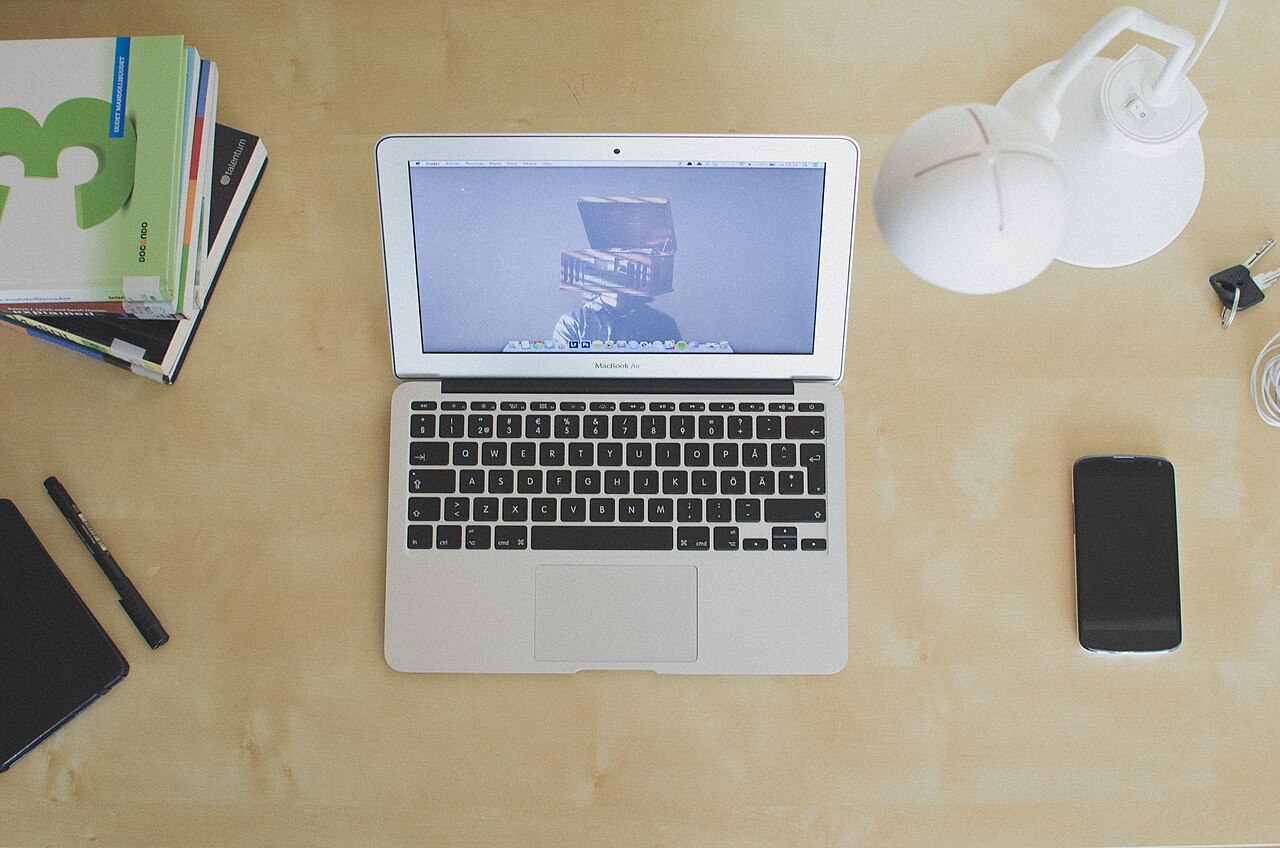
An old laptop is a laptop that has slowed down through years of software clutter, a full drive, or ageing parts. It still turns on, still runs a browser, and still handles documents, but every click seems to take longer than it should. That slowdown feels like a reason to buy a new machine, yet it often comes from a few fixable causes.
Most slow laptops suffer from the same short list of problems. Too many programs launch at startup, the drive is nearly full, the cooling vents are choked with dust, or the machine still runs on a mechanical hard drive. Each of these has a fix, and the free fixes cost nothing but time.
This article explains how to make an old laptop usable again without buying a new one, including finding the bottleneck, free software fixes, two hardware upgrades, and heat and battery care.
Find the bottleneck first
Guessing wastes money. A laptop that lags because its drive is full will not improve with more memory, and a laptop starved of memory will not improve with a cleanup alone. Spend five minutes watching what actually struggles.
On Windows, open Task Manager with Ctrl, Shift, and Escape, then watch the CPU, Memory, and Disk columns while the lag happens. On a Mac, open Activity Monitor and watch the same three figures. The part that stays high while the laptop crawls is the bottleneck.
A disk pinned at 100 percent points to storage, while memory pinned near full points to RAM.
Also note when the slowness strikes. Slowness right after sign-in points to startup apps. Slowness that grows over hours of use points to heat or a program leaking memory.
Slowness only on the web points to the browser or the connection, not the laptop at all. If pages load slowly on every device, the Wi-Fi setup may be at fault rather than the laptop.
Write down the symptom before you change anything. A clear note such as "disk at 100 percent when opening the browser" keeps the fix matched to the cause. It also tells you whether each change helped.
Free software fixes
Start with the fixes that cost nothing. A restart clears memory and finishes pending updates, and it fixes many slowdowns that build up over days of sleep and hibernation. Restart at least every few days instead of closing the lid every night.
Next, trim startup apps. Open Task Manager, go to the Startup tab, and disable apps with a high startup impact that you do not need right away. Disabling an app does not uninstall it, and you can still open it from the Start menu.
Leave security software and touchpad or audio tools turned on.
Free up disk space next. A nearly full drive slows everything down, so aim to keep at least 10 to 15 percent free. Turn on Storage Sense in Settings so Windows deletes temporary files on its own, then clear temporary files by hand.
Uninstall programs you no longer use, since unused apps take space and may run in the background.
Update the system and the drivers. Install Windows updates, then check optional updates for drivers. Outdated drivers can cause compatibility problems that feel like hardware failure.
On a Mac, the same job happens through Software Update.
Scan for malware while you are at it. Malware can use the processor and disk without showing any window. Run a scan with Windows Security or your installed antivirus, and remove anything it finds.
While tidying security, store logins in a password manager instead of reusing one password across sites.
Lighten the browser last. Each open tab and extension uses memory, so close tabs you are not using and remove extensions you forgot you had. Turn on Sleeping Tabs in Edge or Memory Saver in Chrome, which free memory from tabs you have not touched for a while.
If the laptop feels slower after every software update, check whether an update changed a setting before blaming the hardware.
The two upgrades that matter most
If free fixes leave the laptop slow, two hardware upgrades deliver most of the remaining gains. They cost far less than a new machine, and both suit a laptop that is otherwise healthy.
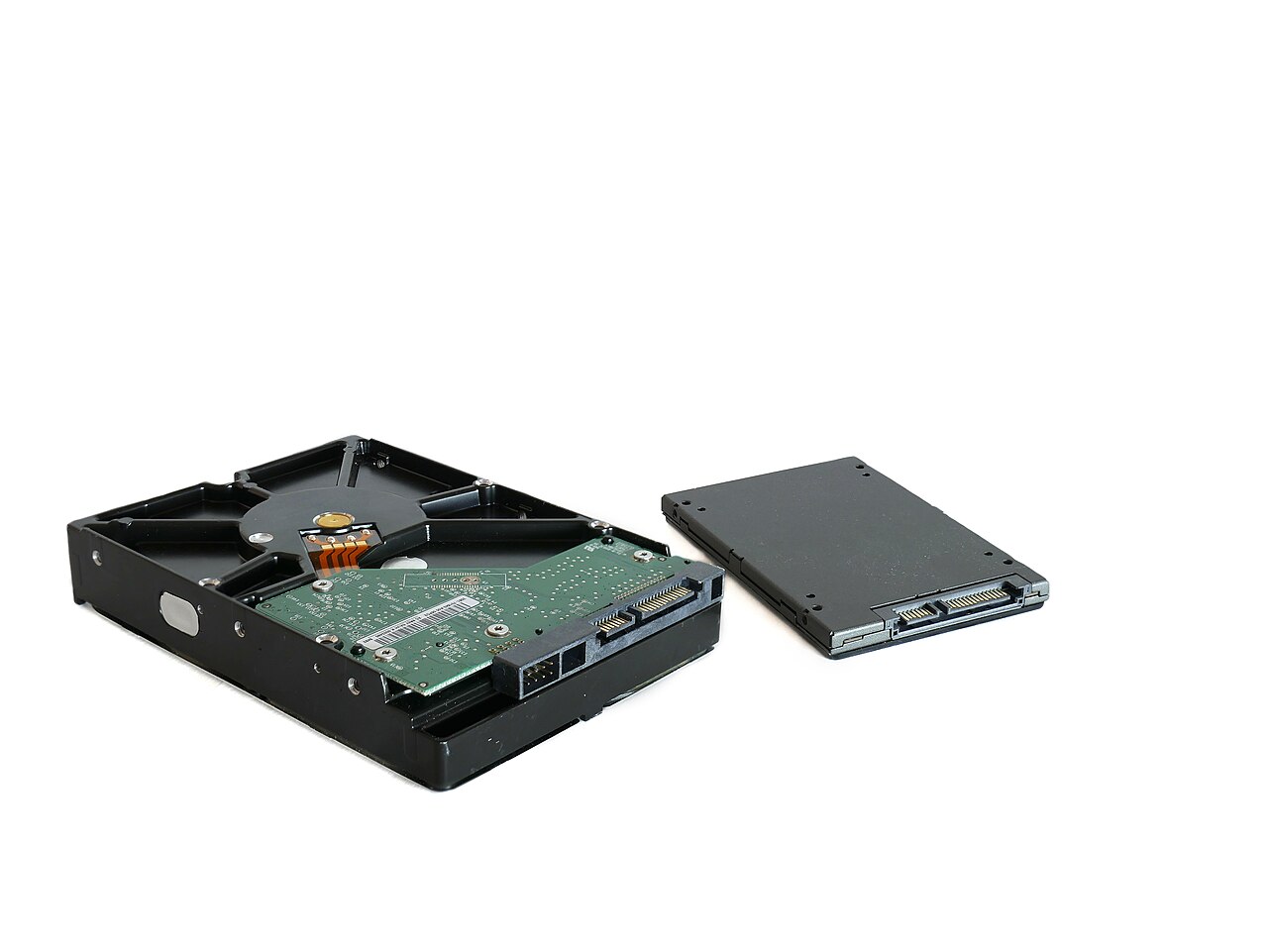
The first is storage: swap a mechanical hard drive for a solid-state drive, or SSD. An SSD has no moving parts and reads data far faster than a spinning disk, so boot times, app launches, and file transfers all improve. ZDNET tested SSD swaps across a range of machines and found that anyone moving from a hard drive to an SSD sees serious performance gains.
ZDNET also notes that swapping a drive should not cause Windows activation problems.
The practical path is simple. Buy a 256GB or 512GB SSD, which TechJuice lists as the sweet spot for most users, then clone the old drive or install Windows fresh. Cloning copies everything as it stands, while a fresh install gives the cleanest result.
Migration can take a few hours, so plan the swap for a quiet evening. Keep the old drive as a backup until the new one has run for a week without trouble.
The second upgrade is memory, or RAM. If the laptop has less than 4GB of RAM, ZDNET calls an upgrade to 4GB a worthy step. If it already has 4GB, ZDNET advises spending on faster storage before more RAM.
TechJuice puts the practical target higher for multitaskers, noting that moving from 4GB or 8GB to 16GB can drastically improve multitasking.
Check compatibility before buying anything. Confirm the RAM type, the number of slots, and the maximum the laptop supports, using the maker manual or a memory vendor scanner. Some thin laptops have soldered memory that cannot be upgraded at all.
If your machine is one of those, the SSD swap and the free fixes carry the whole job.
Heat, battery, and daily care
Heat is the quiet killer of old laptops. Dust in the fans, blocked vents, or dried thermal paste make the processor slow itself down to protect its parts. The signs are fans that run loudly all the time and slowdowns that get worse the longer you use the machine.
Use the laptop on a desk, not on a bed or cushion, so the vents stay clear. Clean the vents with short bursts of compressed air while the machine is off and unplugged. TechJuice notes that cleaning fans and reapplying thermal paste can cut temperatures by 10 to 15 degrees Celsius, which lets the processor run faster.
If you are not comfortable opening the case, a repair shop can do the cleaning for a small fee.
Batteries wear out too. TechJuice reports that laptop batteries typically last two to four years, and a worn battery is one reason an old laptop feels tired. A genuine replacement battery, matched to your exact model, restores portable use.
Avoid cheap no-name batteries, which can swell or fail early.
Daily habits decide how long the revival lasts. Keep the drive clear by deleting downloads and duplicates once a month. Close apps you are not using instead of letting them pile up.
Keep the laptop cool, and keep software updated. Together, TechJuice says, these steps can keep a laptop usable for three to four more years.
When to stop fixing and replace
Some laptops are past sensible repair. TechJuice lists clear warning signs: a processor too old to run modern software, motherboard or graphics faults causing frequent crashes, and a battery replacement that costs more than 30 to 40 percent of a new laptop price. A machine that cannot receive security updates also belongs on the replace list.
Windows 10 support ended on October 14, 2025, so a laptop that cannot run Windows 11 needs Extended Security Updates to stay safe. If the upgrade path is closed and the hardware is failing in several places at once, the money is better spent on a replacement. One new fault is a repair, but three at once is a verdict.
If the laptop still runs its core jobs after the fixes above, keep it. A machine that handles browsing, documents, video calls, and study has earned its place. Spend the saved money on the SSD, the RAM, and a good backup drive instead.
Frequently asked questions
Will a factory reset make an old laptop faster?
Often, yes, because a reset removes years of clutter, broken settings, and unwanted programs. Back up your files first, then reset through the system recovery options. You will need to reinstall your apps afterward, so try the free fixes above before a reset.
How much RAM does an old laptop need for everyday use?
For browsing, documents, and video calls, 8GB is a comfortable minimum, and 16GB suits heavy multitasking. If the laptop has less than 4GB, a memory upgrade is worth doing. Check the maximum your model supports before buying.
Is an SSD upgrade hard to do at home?
The job needs a screwdriver, a cloning tool or install media, and patience. Cloning the old drive keeps your apps and files in place, while a fresh install runs cleaner. If opening the laptop feels risky, a repair shop can fit an SSD for a modest fee.
Does keeping the laptop plugged in ruin the battery?
Leaving the laptop plugged in for long hours can wear the battery faster, and heat makes it worse. Unplug once the charge is full when you can, and avoid using heavy apps on battery for long sessions. A battery that drains in minutes needs replacing, not coaxing.
The bottom line
Start with diagnosis, then work through the free fixes: restart, trim startup apps, clear disk space, update, and scan for malware. If the laptop is still slow, an SSD swap and a RAM upgrade deliver the biggest gains for the least money. Keep the machine cool and the battery healthy, and an old laptop can serve well for years.
Tags: laptop, SSD upgrade, RAM upgrade, PC maintenance
Latest in Tech
- Free up storage on your phone without deleting photos
- Keep logins safe with a password manager
- Do software updates make phones slower
- Do you need a mesh Wi-Fi system
Subscribe to the Rive News newsletter for one practical guide each week.
Related stories
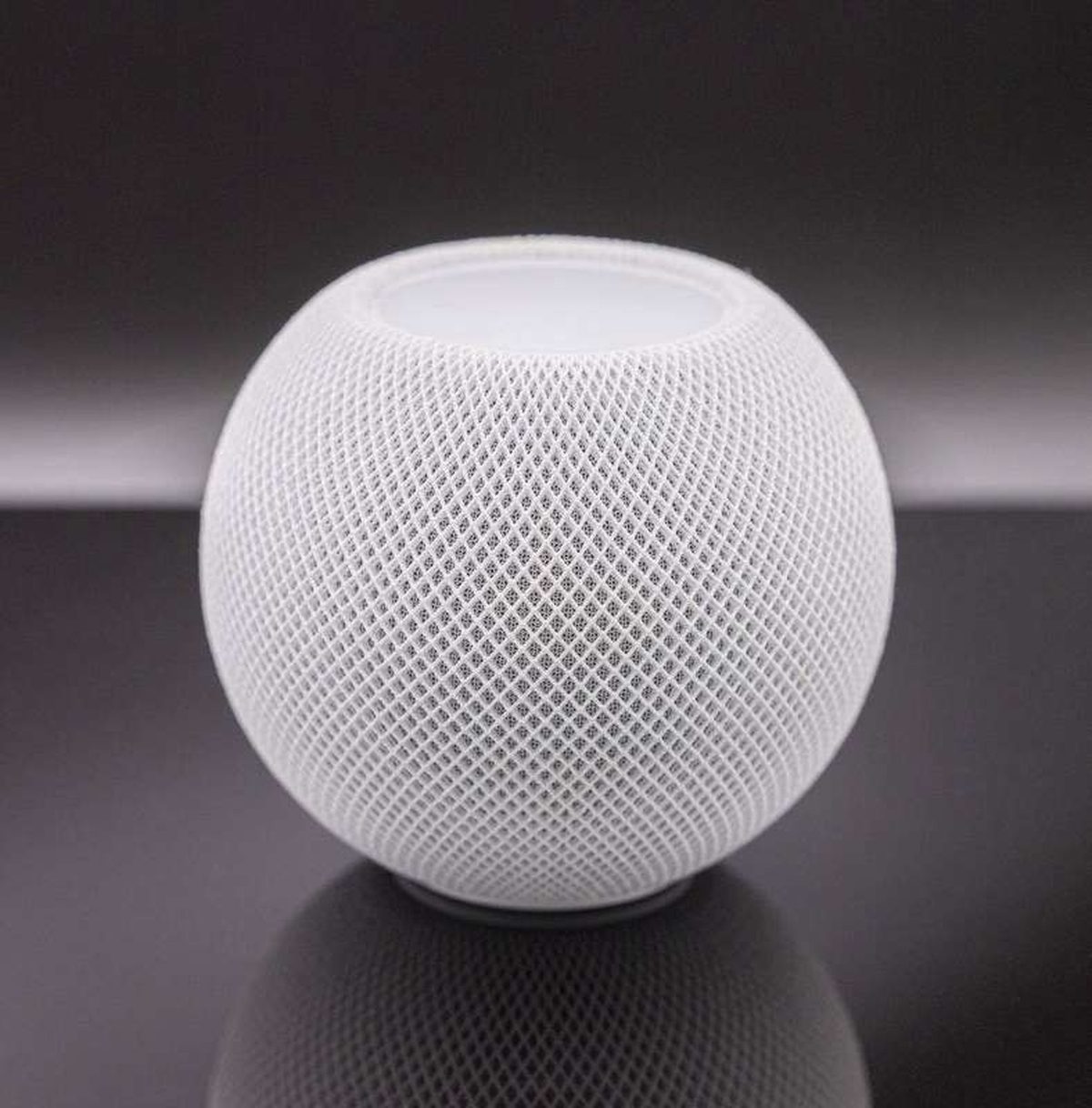
Apple plans two October launches: smart home hub, OLED MacBook Pro
Apple set October 13 for a smart home launch with a new hub, Apple TV 4K and HomePod mini, then October 27 for OLED MacBook Pro models
How to Check If Your Phone Supports eSIM in 30 Seconds
Dial *#06# and look for an EID number to confirm eSIM support in under 30 seconds. This guide also walks through the iPhone and Android
eSIM vs iSIM: what is the difference?
An eSIM is a dedicated chip on the phone's board, while an iSIM lives inside the processor itself. Qualcomm's Snapdragon 8 Gen