
Why some apps drain battery in the background
By Rive News / Research desk | Rive News / Published October 28, 2026 at 9:00 AM PKT
Key takeaways
- Most apps sitting in your recent-apps list are suspended and use almost no battery; the drain comes from specific background jobs.
- Location tracking, frequent syncing, push notifications, and wake locks are the jobs that keep the processor and radios awake.
- Your phone's battery screen shows background time per app, which is the honest way to find the real offenders.
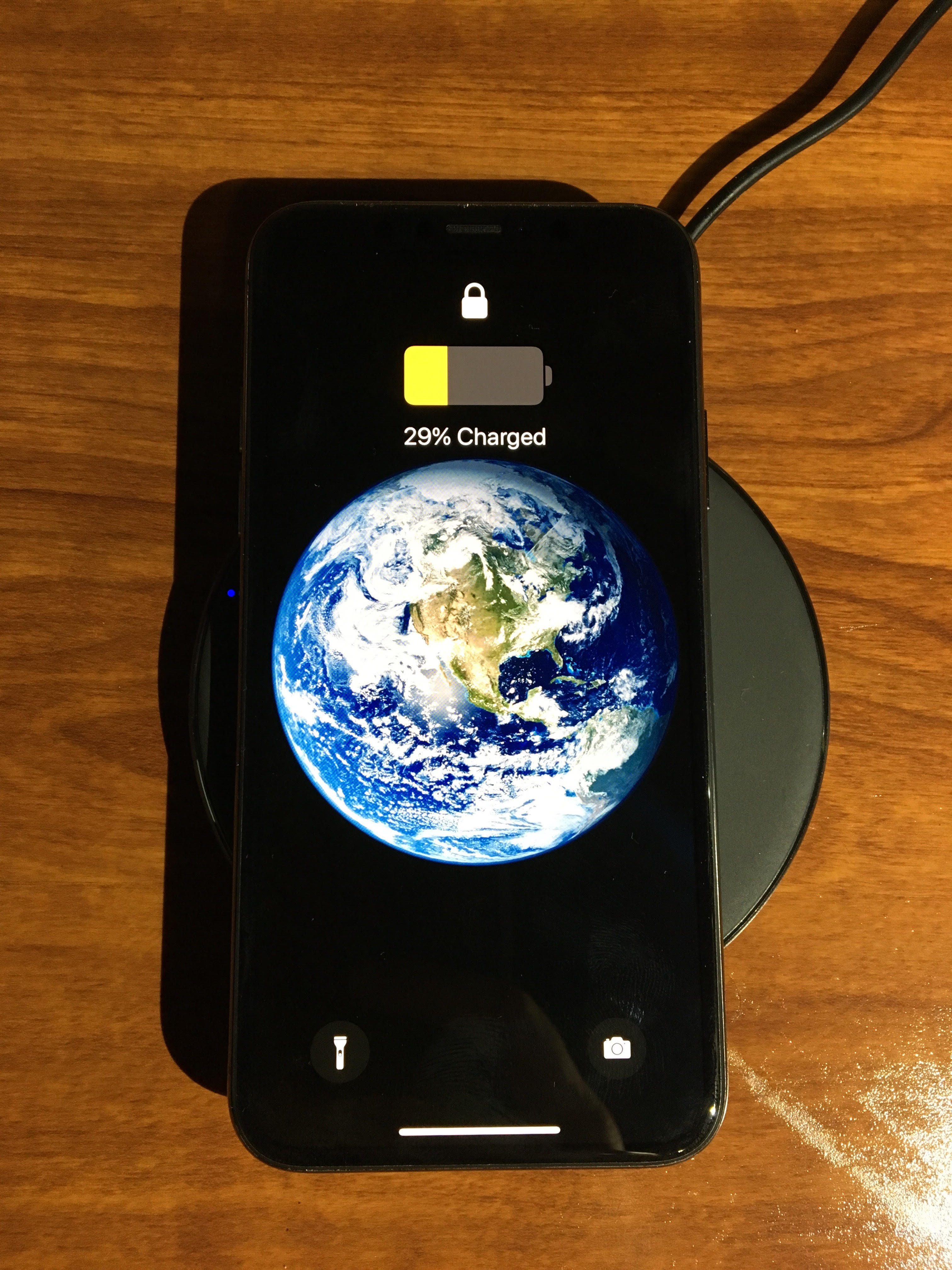
[A phone charges wirelessly on a charging pad.] Photograph: the subject
Image Credits: Wikimedia Commons
Your phone can lose a noticeable amount of charge overnight without you touching it. The usual suspect is background apps, but that label hides an important distinction.
Most background apps cost almost nothing. A small number of behaviours, repeated hundreds of times a day, cost a great deal.
This article separates the two, including what suspended apps actually do, the four background jobs that drain power, how Android and iPhone try to limit them, and how to find the real offender on your own phone.
What background really means
When you leave an app, your phone does not keep it running at full power. On both Android and iOS, the app is suspended: its processes are frozen and its power use drops sharply.
The recent-apps screen is closer to a set of bookmarks than a list of running programs. The phone keeps a snapshot of each app's state in memory so it can return instantly, but the app itself is not actively doing anything.
That is why force-closing every app is usually counterproductive. Closing an app evicts it from memory, and reopening it later forces a full relaunch, which costs more processor time and battery than leaving it suspended. The persistent myth that open apps drain batteries does not match how modern operating systems work, as SamMobile notes in its explainer on the topic.
Background activity is something different. It is work an app is allowed to do while you are not looking at it: fetching new content, receiving a push message, finishing a download, playing audio, or giving turn-by-turn directions.
Some of that work is work you asked for. Some of it is work the app does on its own schedule, and that is where the drain lives.
The four jobs that actually drain power
The first drain is syncing. Email, cloud storage, social media, and news apps check their servers for new content on a schedule.
An app that checks every 30 seconds instead of every 5 minutes wakes the processor and the radio ten times as often for the same result. Multiply that by a dozen apps, and the phone rarely gets to sleep properly.
The second drain is location. Apps that track your position, such as weather, fitness, ride-hailing, and smart-home apps with geofencing, can request GPS fixes even when you are not using them.
GPS is one of the hungrier sensors, and constant location checks add up fast. An app with permission to use location always, rather than only while you are using it, is a prime suspect in any unexplained drain.
The third drain is wake-ups. Every push notification wakes the processor, lights the screen briefly, and processes data. One notification is trivial.
Hundreds of notifications a day, plus the background fetches that follow them, keep the phone in a state of near-constant low-level activity. Ad tracking and analytics scripts inside free apps can add further wake-ups that serve the app's business rather than yours.
The fourth drain is wake locks, a mechanism by which an app tells the phone not to sleep until a job finishes. A well-behaved app releases its wake lock in seconds.
A buggy app can hold one far longer, or repeatedly re-acquire it, keeping the processor awake all night. A phone that feels warm while idle, with no app on screen, is often a phone held awake by a wake lock.
Why some apps are worse than others
Not every app gets the same freedom. Navigation and music apps are allowed to keep running because you explicitly started a task: directions, or playback. Those are foreground services, and the phone shows you they are running.
The worst offenders are usually apps that combine several drains at once. A social app might sync every few minutes, track location in the background, and wake the phone for every comment, like, and message. A poorly optimised smart-home app might poll its server every 30 to 60 seconds and hold a Bluetooth channel open just in case, as well as running location checks for geofencing.
Each behaviour alone is small. Together, they keep the processor, the radio, and the GPS busy around the clock.
Bugs make it worse. An app stuck in a loop, repeatedly retrying a failed sync or re-requesting a location fix that never resolves, can burn through battery far faster than a healthy app doing the same job on schedule.
After a major operating system update, apps can also lose their optimised behaviour and start syncing more aggressively until the system relearns their patterns, which is one reason battery drain often spikes for a day or two after an update. For that pattern in detail, see why your phone battery drains after a software update.
Weak signal amplifies everything. A phone struggling to hold a cellular or Wi-Fi connection raises its radio power to stay connected, so every background sync costs more energy than the same sync on a strong signal. An app that looks like a battery hog in a basement office may behave perfectly at home on Wi-Fi.
How the operating systems fight back
Both major platforms now limit background work aggressively. Android's Doze mode, introduced in Android 6.0 Marshmallow, restricts background activity when the device is idle and stationary, deferring syncs, jobs, and alarms to periodic maintenance windows. App Standby puts rarely used apps into a low-power state, limiting their network access and background services, with the tightest limits on apps in the rarely used bucket.
Android also offers Adaptive Battery, which learns your habits over days and restricts background work for apps you rarely open. A developer option called Suspend execution for cached apps goes further: when an app enters the cached state, Android freezes it instead of letting it run, while keeping it loaded for instant reopening. One MakeUseOf test found overnight drain falling from 7 to 10 percent to around 1 to 2 percent after enabling it, though results will vary by phone and app mix.
On iPhone, the main control is Background App Refresh, found in Settings, then General. It lets suspended apps check for new content, and switching it off for a specific app, or for every app, stops those routine checks.
It does not stop tasks you started yourself, such as music playback or navigation. Low Power Mode goes further by disabling Background App Refresh and reducing other background activity automatically.
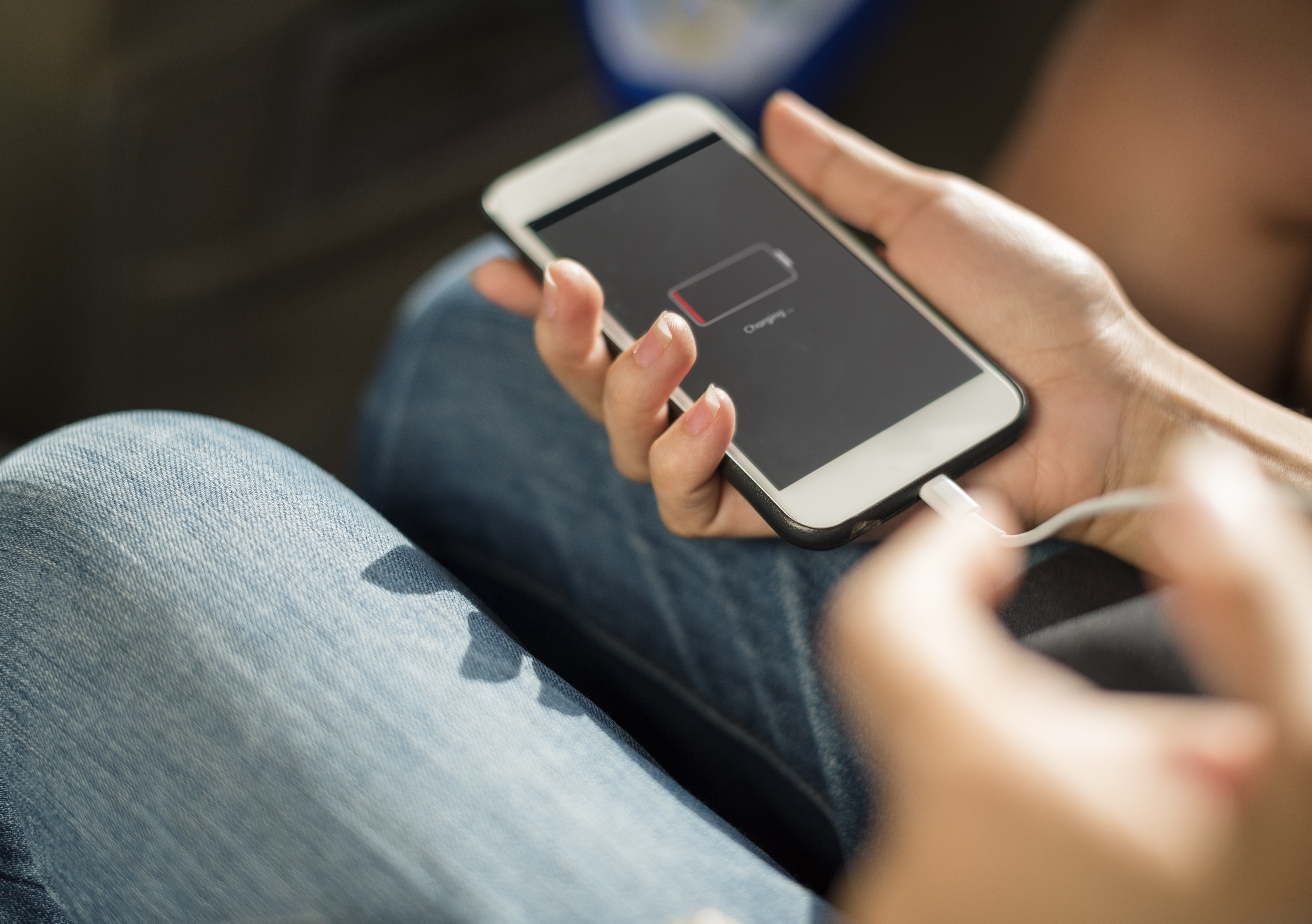
[A phone with a dead battery, the end state of unchecked background drain.] Photograph: the subject
Image Credits: Wikimedia Commons
How to find the real offender
Start with the battery screen, not with guesswork. On iPhone, open Settings, then Battery, and look at the list of apps for the last 24 hours or 10 days.
Tap an app to see why it used power. A large background figure means it was busy while you were not using it.
On Android, open Settings, then Battery, then Battery Usage, and look for apps at the top of the list with high background time. Sort or filter by background usage if your phone offers it. An app running continuously despite no interaction from you is worth investigating before anything else.
Once you have a suspect, check three permissions in order. First, location: change it from Always to While Using the App, or to Never, for apps that do not need continuous tracking.
Second, Background App Refresh on iPhone, or battery optimisation on Android: restrict the app's background work and watch the battery screen for a day. Third, notifications: silence the categories you never act on, since each one wakes the phone.
And if the whole phone drains fast rather than one app, check the signal first: a phone fighting for coverage in a weak-signal area will drain no matter which apps are installed, which is also why your phone battery drains faster in cold weather is a related but separate problem, since cold affects the battery chemistry itself.
Frequently asked questions
Should I force-close all my apps to save battery?
No. Suspended apps use minimal power, and force-closing them forces a costly full relaunch later. Close only an app that is actively misbehaving, and let the operating system manage the rest.
Why does one app use battery in the background but another does not?
Because background work differs by app. A messaging app that receives push messages, a fitness app that tracks location, and a news app that syncs every few minutes all do more background work than a calculator or a notes app that only runs when opened.
Does turning off Background App Refresh break notifications?
No, on iPhone it stops routine content checks, but push notifications still arrive, and tasks you start yourself, such as music or navigation, keep running. Apps will simply refresh their content when you open them instead of beforehand.
Can a single app drain a phone overnight?
Yes, if it holds a wake lock, polls a server constantly, or tracks location all night. A phone that loses more than a few percent overnight with the screen off usually has one such app, or is fighting a weak signal.
Is battery drain after an update permanent?
Usually not. After a major update, the phone re-indexes data and apps relearn their optimised behaviour, which can take a day or two. If drain persists beyond that, a specific app or setting is the likelier cause.
The bottom line
Some apps drain battery in the background, but the cause is never background activity in general. It is specific jobs: frequent syncing, constant location checks, endless notifications, and wake locks that keep the phone from sleeping. Suspended apps are nearly free, and force-closing them usually costs more than it saves.
Check the battery screen, restrict the worst offender's location and background permissions, and give it a day. If the drain survives that, the app is buggy or the signal is weak, and no amount of app-closing will fix either.
Tags: battery, apps, smartphones
Rive News is a research desk covering everyday technology. It writes explainers from public sources and documents, not from first-hand product testing.
Related
- Why your phone battery drains after a software update
- Why does your phone battery drain faster in cold weather
- Why do phone batteries degrade even if you barely use them?
- Battery calibration: what it is and whether it helps
Subscribe to the Rive News newsletter for one plain-English technology explainer each week.
Rive News follows a corrections policy: errors are corrected openly and the article is updated with a timestamp.
Related stories

Apple plans two October launches: smart home hub, OLED MacBook Pro
Apple set October 13 for a smart home launch with a new hub, Apple TV 4K and HomePod mini, then October 27 for OLED MacBook Pro models
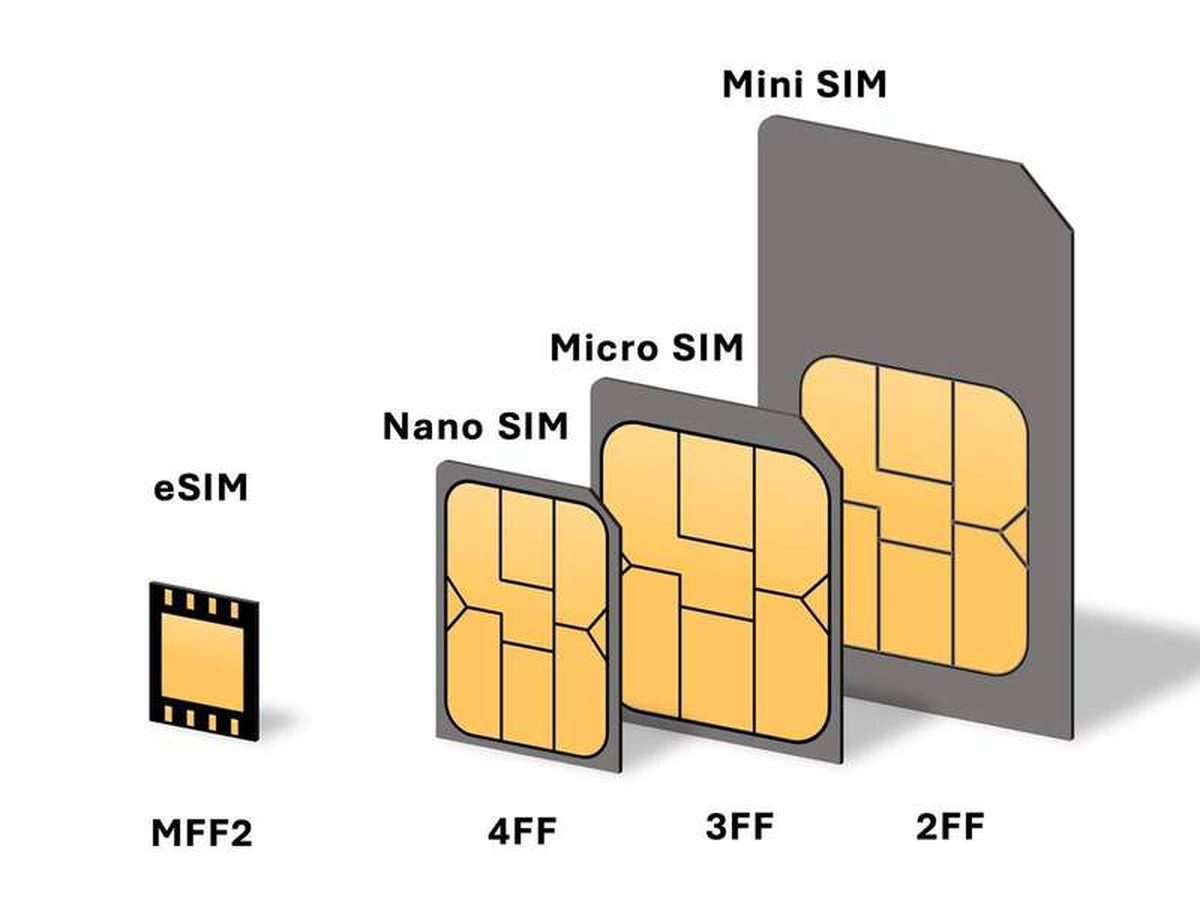
How to Check If Your Phone Supports eSIM in 30 Seconds
Dial *#06# and look for an EID number to confirm eSIM support in under 30 seconds. This guide also walks through the iPhone and Android
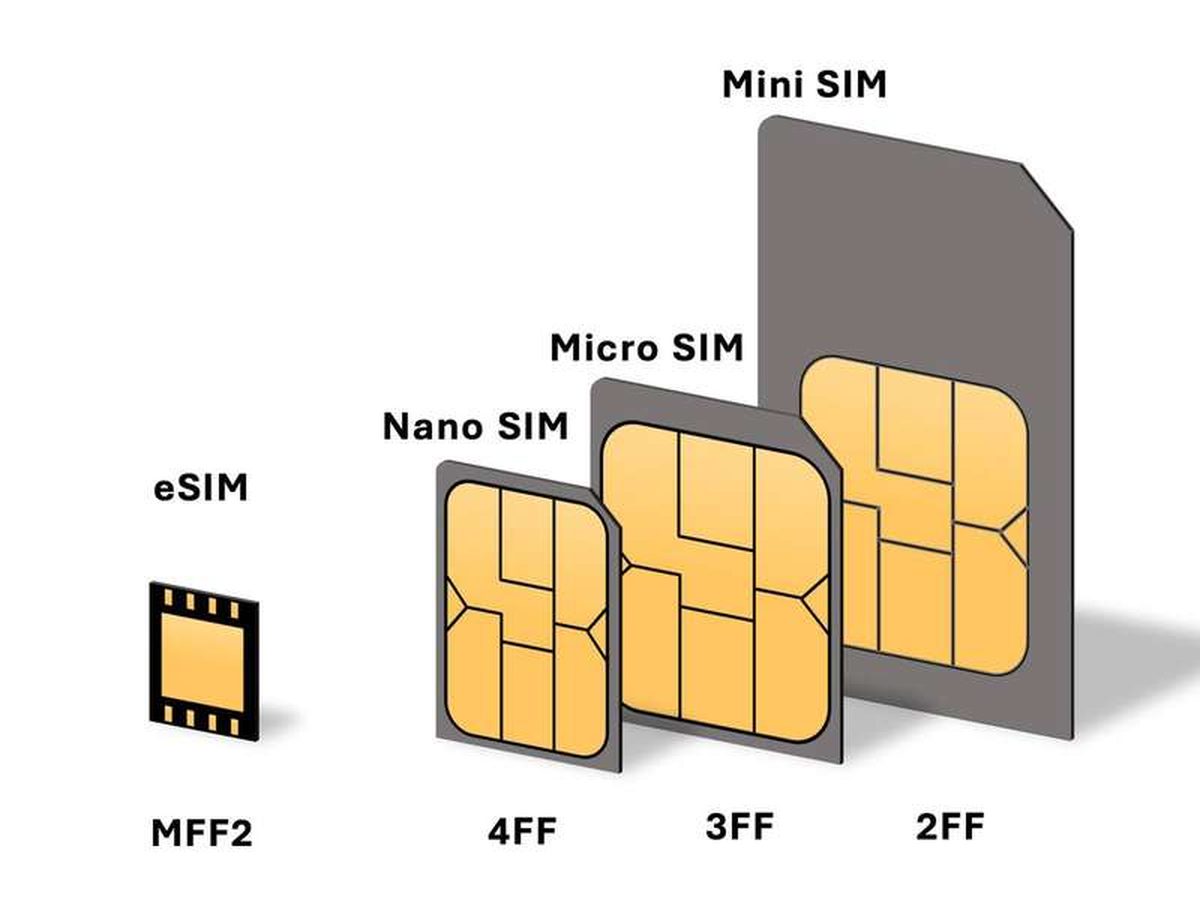
eSIM vs iSIM: what is the difference?
An eSIM is a dedicated chip on the phone's board, while an iSIM lives inside the processor itself. Qualcomm's Snapdragon 8 Gen