
Clearing an app cache: what really happens next
By Rive News / Research desk | Rive News / Published October 29, 2026 at 9:00 AM PKT
Key takeaways
- Clearing cache removes temporary files an app stored to load faster, nothing else.
- Logins, settings, drafts, and personal data survive a cache clear on Android.
- iPhone has no system-wide clear cache button; offloading keeps data, deleting removes it.
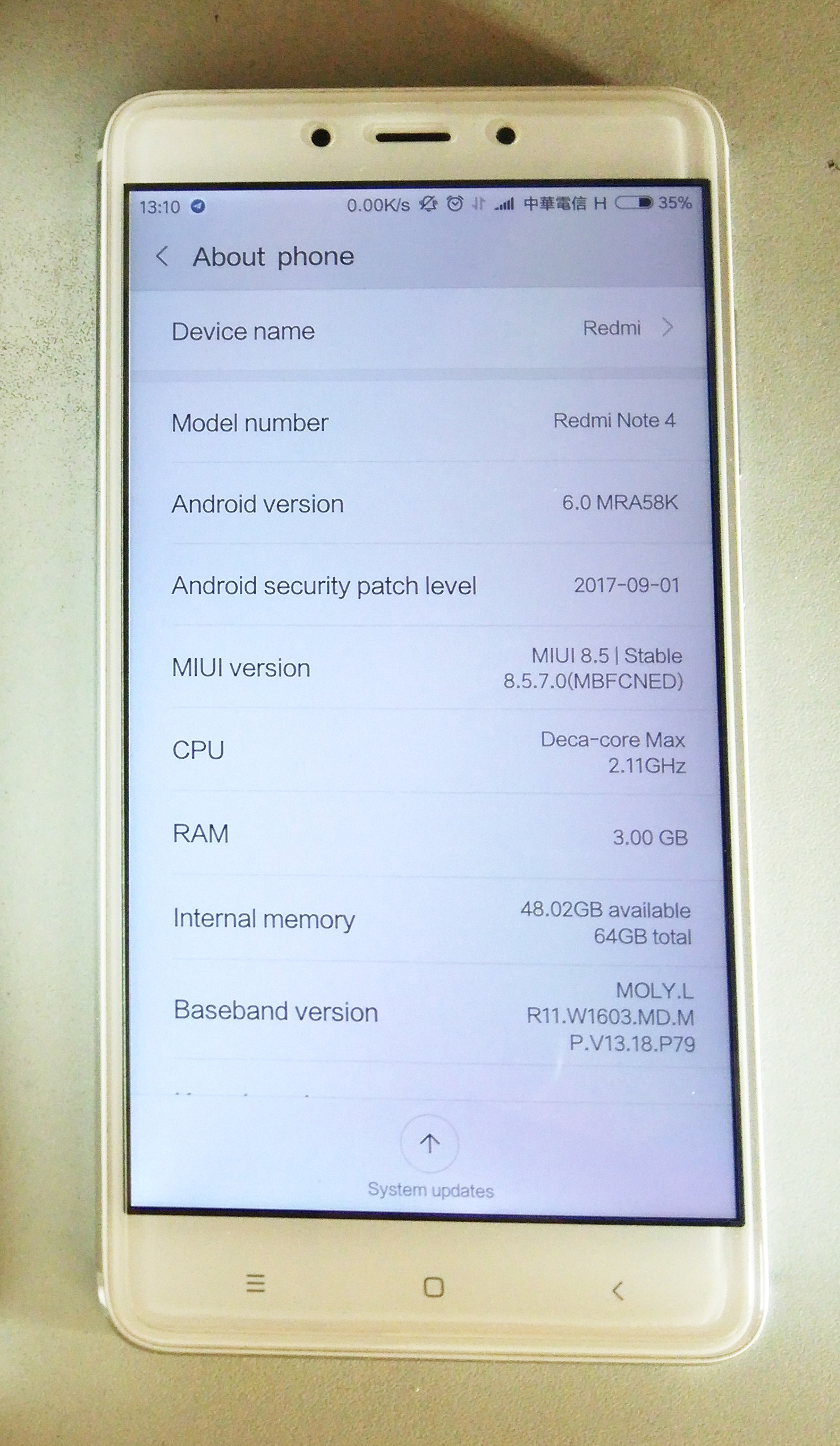
[A smartphone in everyday use, the kind of device that slows down as its storage fills up. Photograph: Xiaomi Redmi Note 4 handset photo]
Image Credits: Wikimedia Commons
Clear cache is one of the most recommended phone fixes, and one of the most misunderstood. It is offered as a cure for slow apps, glitches, and full storage, often in the same breath as advice that would log you out of everything. The button itself is modest.
It throws away temporary files and leaves the rest of the app alone. Knowing exactly where that line falls is the difference between a safe fix and an accidental reset.
This article explains what cache is, what clearing it removes, what stays untouched, how Android and iPhone differ, when clearing helps and when it does not, and the steps on each platform.
What cache is
Cache is temporary data an app stores on the phone so it does not have to fetch the same thing again. Images, scripts, thumbnails, and fragments of pages you have already seen are the typical contents. When you reopen an app, it reads those files locally instead of downloading them, which makes the app feel faster and uses less mobile data.
Think of it as a shortcut shelf. The app keeps copies of things it expects to need again, close at hand. Over time, that shelf fills up.
A social app may cache hundreds of images from feeds you scrolled past once. A browser caches page assets for sites you may never revisit. The files are useful, but none of them is unique.
Every cached file can be downloaded or rebuilt again.
Cache is not the same as app data, and the distinction drives everything else in this article. App data includes your account, settings, preferences, databases, saved progress, and local drafts. Cache is the disposable layer on top of that data.
Clearing cache sweeps the shelf. Clearing data empties the room.
What clearing it removes
On Android, tapping Clear cache deletes the app's temporary files and nothing else. The app's own storage figure for cache drops to zero, and the space those files occupied is freed. The freed amount is usually modest, from a few megabytes for a small utility to several hundred megabytes for a heavy social or video app.
It is rarely the gigabytes that a storage crisis needs, because cache is only one slice of what an app stores.
The immediate effect is a slightly slower first launch. Google notes that after the cache is cleared, some apps may launch more slowly the first time, because they must re-download the files they just discarded. Images may load with a brief delay, feeds may take a second longer to fill, and offline content that was cached may need a connection again.
The app then rebuilds its cache as you use it, and performance returns to normal, usually within a session or two.
A corrupted cache file is the case where clearing helps most. If a cached image or script is damaged, the app may crash, show stale content, or behave oddly in ways that survive a restart. Clearing the cache forces the app to fetch fresh copies, which removes the damaged file from the equation.
That is why support guides reach for this button early. It is a low-risk way to rule out a whole class of faults.
What stays untouched
On Android, a cache clear keeps your login session, so you stay signed in. It keeps your settings and preferences, your local databases, and drafts saved in the app's data area. Your search history that is tied to your account will return after you sign in again, because it lives on the server, not in the cache.
In-app browser cookies are a partial exception in some apps, since a few apps store web session data alongside cache, but the app's own account login is not part of the cache.
The contrast with Clear storage, called Clear data on Samsung phones, is sharp. That button resets the app to its fresh-install state. It deletes accounts, settings, and databases stored locally, and you will need to sign in again afterwards, according to Google's and Samsung's warnings.
Drafts that lived only on the device are lost with it. The two buttons sit close together in Settings, and tapping the wrong one is the most common cache-clearing accident.
On iPhone, the picture is different because Apple does not expose a system-wide clear cache control. Apps that build their own cache-clearing button into their settings, such as some browsers and social apps, can clear their own cache directly. For every other app, the choices are Offload App or Delete App, and neither is a cache clear.
Offloading deletes the app binary but keeps its documents and data, so reinstalling restores them. That makes it a poor tool for clearing cached clutter, because much of what you hoped to remove sits in the kept data. Deleting the app removes the app and its related data, which is the clean slate, at the cost of signing in again and losing local drafts.
Knowing which of the two you tapped matters more on iPhone than on Android, because there is no gentle middle button in Settings.
Android vs iPhone
The Android route is per app, and there is no single clear-all-cache button on stock Android. Open Settings, then Apps, choose the app, open Storage, and tap Clear cache. Samsung phones use the same labels, with Clear data as the separate, destructive option.
Clearing cache for a dozen apps means repeating those taps a dozen times, which is tedious but also safe, because each tap is narrowly scoped.
The iPhone route starts inside the app, not in Settings. Safari and Chrome both offer website data controls in their own settings, and those controls clear browser cache and cookies for the browser only. For other apps, check the app's own settings menu for a cache or storage option.
If none exists, offloading is the gentler step and deleting is the full reset, and neither should be chosen casually.
Apple says the iPhone deletes cached and temporary files on its own when it needs space, so manual cache clearing buys less headroom there than on Android. If storage is the real problem, deleting large files and offloading unused apps help far more than any cache sweep.
When clearing helps and when it does not
Clearing cache helps when an app misbehaves in a way that smells like stale or corrupted temporary data. A feed that shows old images, a page that loads half-broken, or an app that crashes on one screen but works elsewhere are all plausible cache cases. It also helps a little with storage, when a single app's cache has grown unusually large, such as a video app holding gigabytes of previews.
It does not help when the app's problem is in its data or its code. A login loop, a missing account, or a feature that broke for everyone after an update will survive a cache clear untouched, because the fault is not in a temporary file. Clearing cache repeatedly for the same fault is a sign to stop and try the next steps instead, such as updating the app, restarting the phone, or reinstalling it.
Clearing cache also does not speed up a phone in general. It frees a little space and forces one app to rebuild its shortcuts, which briefly slows that app down. A phone that feels slow overall is more likely struggling with full storage, an aging battery, or too many background apps, and none of those is a cache problem.
The storage screen in Settings, which breaks down usage by app, is the honest place to start.
If a cache clear does not fix a glitch, the next step is a clean reinstall, which removes both cache and data and fetches a fresh copy of the app. That step logs you out and loses local drafts, so check that you know your password and that anything important is backed up before taking it. When even a reinstall fails, the fault is usually on the company's servers or in the app version itself, and waiting for an update beats further tinkering.
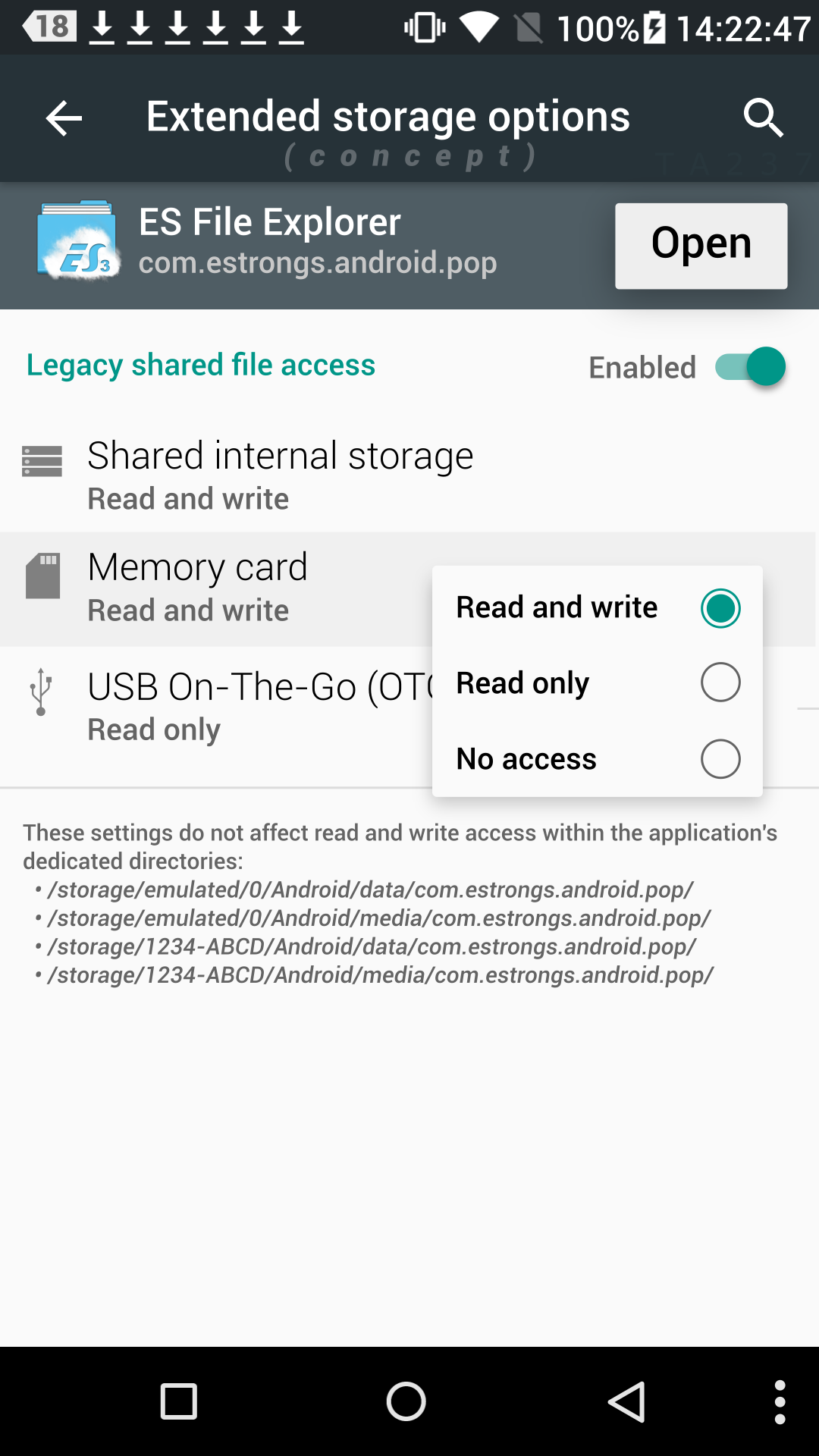
[An illustration of Android extended storage options, the settings area where extra space can be managed. Photograph: Android storage options concept]
Image Credits: Wikimedia Commons
Frequently asked questions
Will clearing cache log me out?
On Android, no. Clear cache keeps your login and settings. Clear storage, or deleting the app on iPhone, logs you out.
The two buttons do different things, so read the label before tapping.
Will clearing cache delete my photos or messages?
No. Photos, messages, and files stored outside the app's cache are untouched. What disappears is temporary data the app can download again, such as cached images and page fragments.
Why is there no clear cache button on my iPhone?
Apple does not offer a system-wide control for individual app caches. Only apps with their own cache setting can clear it directly. For other apps, offloading keeps data while deleting removes it.
How often should I clear app caches?
Rarely, and only for a reason. Cache exists to make apps faster, so clearing it routinely just forces re-downloads. Clear it when an app glitches or one app's cache has grown unusually large.
The bottom line
Clearing an app cache removes temporary files and nothing else. Logins, settings, and personal data survive on Android, the app rebuilds its cache as you use it, and the first launch may be a little slower. On iPhone, there is no equivalent button in Settings, so offloading and deleting are the available steps, with very different consequences.
Use Clear cache for a glitchy app, use the storage screen for a full phone, and never confuse Clear cache with Clear storage.
Tags: app cache, phone storage, Android, iPhone
Rive News's research desk covers everyday technology in plain language, checking each claim against public documentation before publication.
Related
- Why some apps drain battery in the background
- Why your phone gets slower when storage is nearly full
- Why software updates make old phones slower
- What happens inside your phone when you restart it
Subscribe to Rive News for one plain-English technology explainer each weekday.
Rive News publishes explainers based on public sources; corrections are noted on the article when a sourced fact changes.
Related stories

Apple plans two October launches: smart home hub, OLED MacBook Pro
Apple set October 13 for a smart home launch with a new hub, Apple TV 4K and HomePod mini, then October 27 for OLED MacBook Pro models
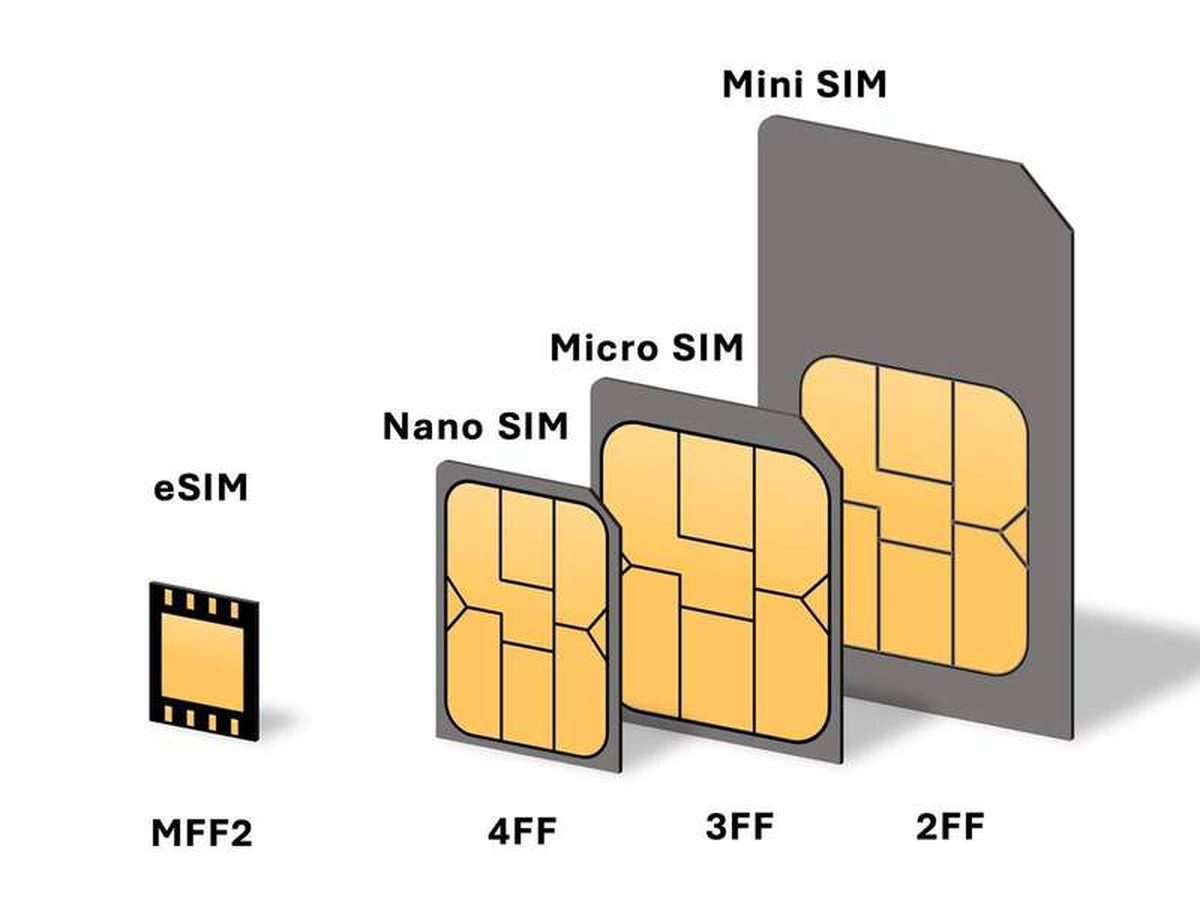
How to Check If Your Phone Supports eSIM in 30 Seconds
Dial *#06# and look for an EID number to confirm eSIM support in under 30 seconds. This guide also walks through the iPhone and Android
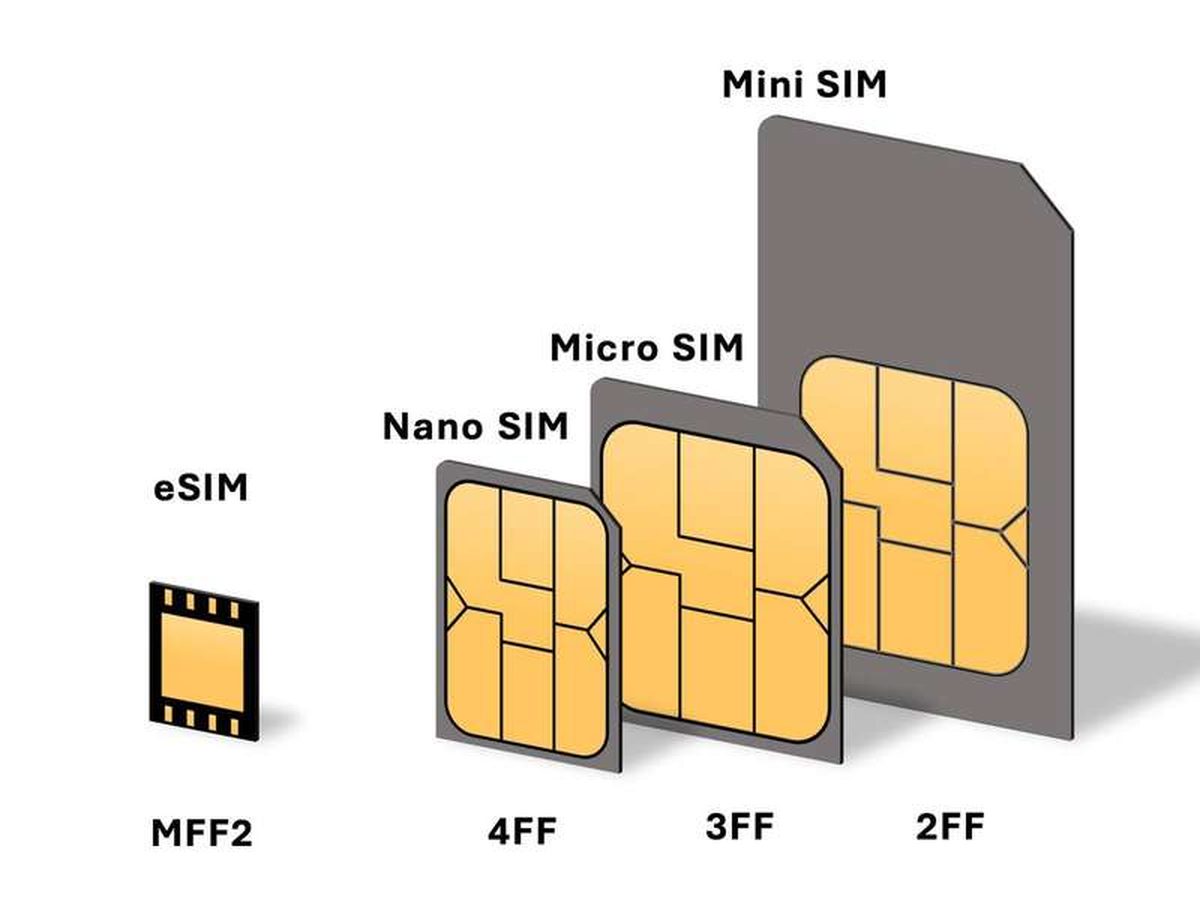
eSIM vs iSIM: what is the difference?
An eSIM is a dedicated chip on the phone's board, while an iSIM lives inside the processor itself. Qualcomm's Snapdragon 8 Gen